

Free FPS Checker – Test Your Device FPS Online for Roblox
This free fps checker measures how many frames per second your browser tab renders on this device and display. It cannot read Roblox’s in-game FPS. It does show whether your device can hold a smooth 60 FPS, which is what Roblox targets by default.
Press Start test and let it run for 10 to 20 seconds. This measures how many frames per second your browser tab renders on this device and display. It cannot read Roblox in-game FPS, but it tells you whether your device can hold the smooth 60 FPS that Roblox targets.
What this measures (honestly)
- Browser tab rendering FPS. It counts the frames this tab draws using requestAnimationFrame, which reflects your device GPU and CPU, your display refresh rate, and background load.
- It cannot read Roblox in-game FPS. For the real in-game number, use Roblox own Performance Stats (Shift+F5 on PC).
- Above 60 here does not mean above 60 in Roblox. Roblox caps at 60 FPS by default, so a 120 or 144 result on a high refresh-rate display still means 60 inside Roblox.
- Keep the tab visible. Hidden tabs pause frame delivery, which pauses the measurement.
Use it as a device-readiness check: if this test holds a steady 60, your device has the headroom Roblox needs.
What this online FPS checker measures (honestly)
This online FPS checker counts how many frames your browser tab draws each second. It does this with requestAnimationFrame, a standard browser feature that fires once per screen repaint. The tool counts those events and shows the result as FPS.
The number reflects your device and display, not any single game. Think of it as a device-readiness check: can this hardware, at this moment, keep up with a steady 60 FPS? It is a useful proxy, not a Roblox measurement.
What affects the result:
- Your GPU and CPU, and how busy they are right now
- Your display’s refresh rate (a 60 Hz screen cannot show more than about 60 frames per second in a browser)
- Background apps, extra tabs and browser extensions
- Power settings, such as battery saver or low power mode
What this tool cannot do:
- It cannot read Roblox’s in-game FPS. Roblox runs its own engine, and this page has no access to it.
- It cannot measure your physical screen beyond what the browser reports.
- It cannot diagnose network lag. High ping and low FPS are different problems.
- It cannot tell you how a specific Roblox experience will perform, because every experience is built differently.
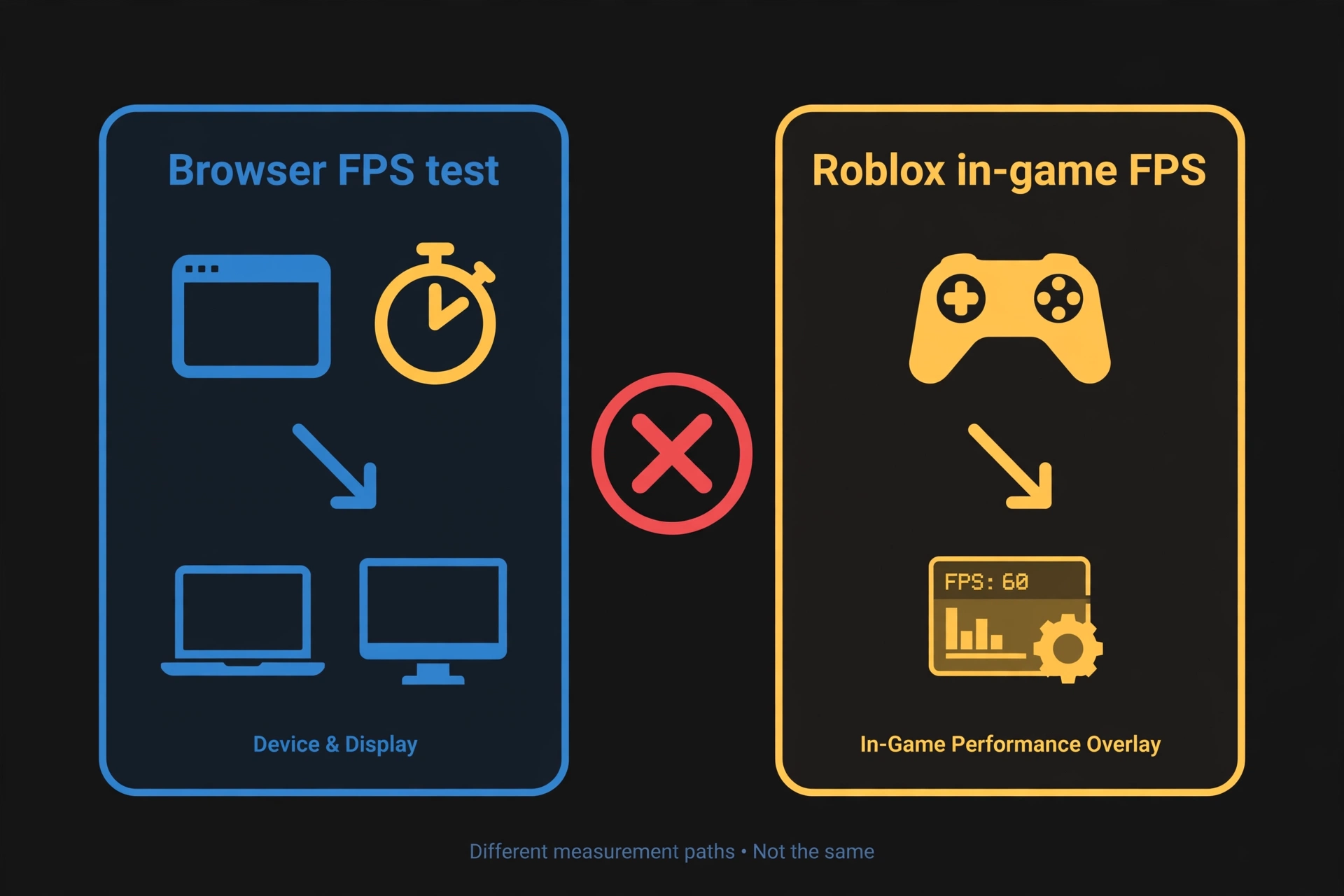
For best results, keep this tab visible while the test runs. Browsers pause animation in background tabs, which makes the reading meaningless.
Running scripts through Delta? A slow script can add to the pile-up on a busy CPU thread, so check your code first with our free Lua validator before you blame the hardware.
Roblox FPS checker results: what your number means for Roblox
Roblox’s own documentation says the default client frame rate cap is 60 FPS. That makes 60 the number that matters for this FPS test.
Here is how to read your result:
- Around 60 FPS: Your device matches the Roblox default cap and is ready for smooth play. A steady 60 is the goal.
- 30-59 FPS: Playable, but expect dips and stutter. Check the causes in the section below, starting with background apps and power settings.
- Below 30 FPS: Choppy. Something is holding the device back, such as weak hardware, a throttled power mode, overheating or heavy background load.
A browser result above 60 does not mean Roblox will run above 60. A high refresh rate display can show 120 or 144 in the browser while Roblox stays at its 60 cap.
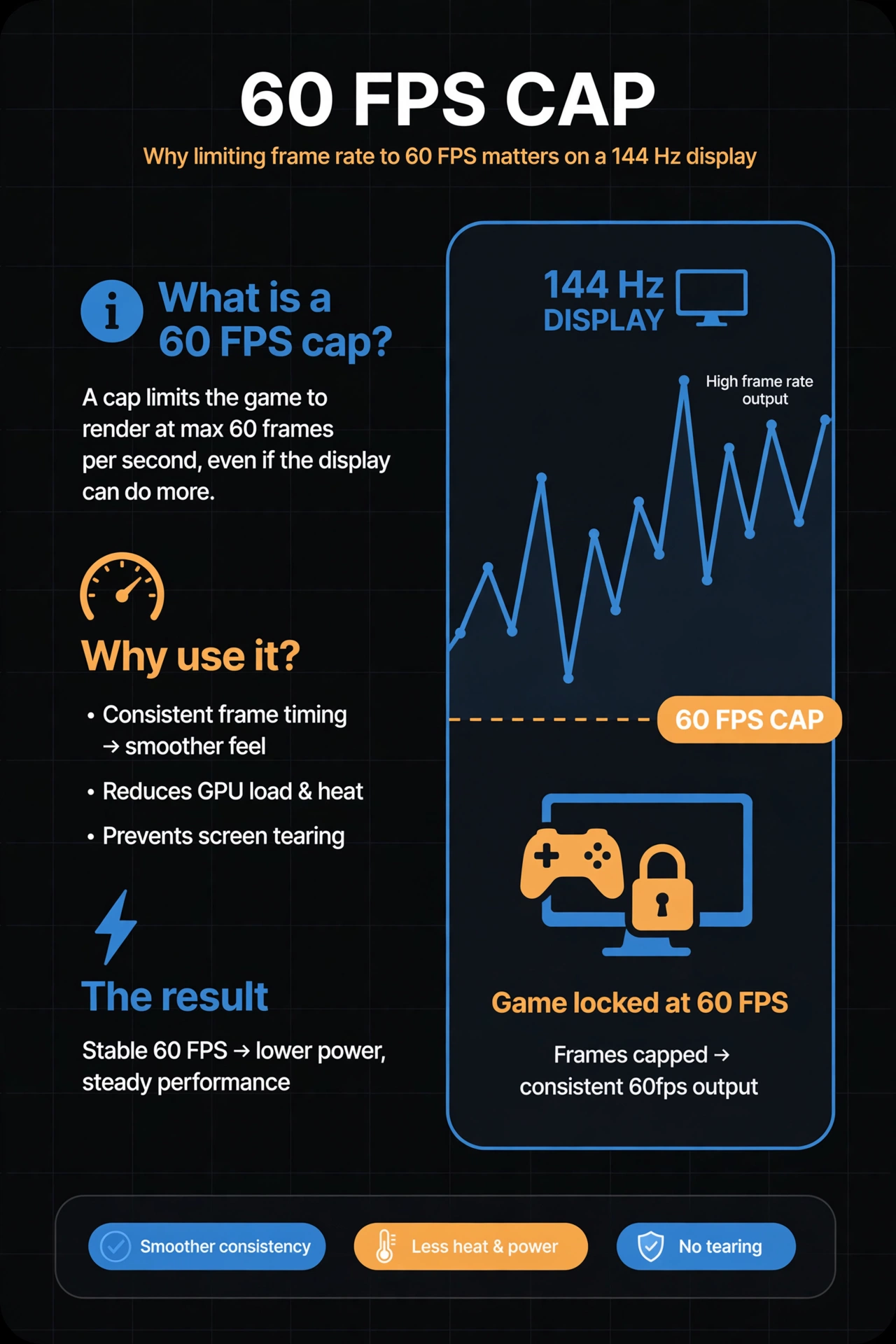
On Windows, Roblox now includes a Maximum Frame Rate setting in its in-game menu. Roblox’s docs say Windows players can raise the cap up to 240 FPS. Raising the cap only removes the limit. Your device still has to render those frames. Check your own Roblox menu to see what your device offers, since platform support differs.
How to check FPS online vs in Roblox for real
To get your actual in-game number, use Roblox’s own tools. They read the engine directly, which no browser tool can.
On PC and Mac:
- Press Shift+F5 while inside an experience to show the debug stats summary with your FPS. Roblox’s documentation describes this shortcut for the client.
- If nothing appears, try Ctrl+Shift+F5 on Windows or Cmd+Shift+F5 on Mac. Roblox lists those combinations in its diagnostic tools table.
- On a Mac, you may need to hold Fn so the function keys work.
- You can also open the in-game menu, go to Settings and turn on Performance Stats. This is a separate overlay from the Shift+F5 summary, and its contents vary by client.
On mobile:
- Some app versions and devices offer a Performance Stats option in the in-game Settings menu. Others do not show one.
- The sources disagree on this. Roblox’s hardware-testing guide says the overlay shows FPS, memory and ping. Roblox’s tools reference describes it as memory, CPU, GPU, network and ping, with no FPS listed. Several community guides say mobile has no built-in FPS counter at all.
- The honest answer is that it depends on your client and version, so check your own Settings menu.
- Some Android phones have a system game overlay that can display FPS. This depends on the phone and is not a Roblox feature.
Use both tools together. This page tells you whether your device and display are healthy. Roblox’s overlay tells you what the game is really doing.
FPS checker: why is my FPS so low? Common causes and fixes
Low FPS usually has a boring cause. Work through this list before buying anything or installing anything.
- Background apps eating CPU and GPU. Close browsers with many tabs, video calls, downloads and game launchers, then run the FPS test again.
- Roblox leaning on one busy CPU thread. Roblox uses several threads, but script and game logic work can pile up on one, so a strong CPU with low overall usage can still produce low FPS. This is community-reported behavior and is hard to fix on your end. Lowering graphics will not help if one thread is the bottleneck, so try a different server or a lighter experience.
- Graphics mode set too high. Open the menu, go to Settings, switch Graphics Mode to Manual and lower the Graphics Quality slider. Test in the same busy spot each time.
- Outdated graphics drivers. Update your GPU driver and your operating system. On a PC with two GPUs, make sure Windows runs Roblox on the high-performance one (Settings > System > Display > Graphics).
- Mobile thermal throttling. A phone that heats up slows itself down to cool off, so FPS drops after a few minutes. Roblox’s own developer docs say phones, tablets and thin laptops reduce clock speeds when they overheat. Take breaks, remove the case and avoid charging while playing.
- Battery saver or low power mode. Power-saving modes can cap CPU and GPU speed. Turn them off and plug in laptops before testing.
- An unoptimized experience. Some Roblox experiences simply run badly, even on strong hardware. Roblox’s docs note that high-end PCs can brute-force inefficient code, while weaker devices struggle more. If one experience is slow and others are fine, the game is the likely cause, not your device.
- Network lag mistaken for FPS lag. High ping is not low FPS. If your character rubber-bands or other players jump around, suspect the network. If everything looks choppy on your own screen, suspect FPS. Roblox’s Performance Stats bar shows ping, so check both numbers separately. If ping is the suspect, run our free ping test to check your connection.
None of these fixes involves a magic booster. They remove things that hold your device back. If the problem hits across devices and experiences, check the Delta Executor status page for known issues before spending more time troubleshooting.
FPS checker honest answer: does Delta Executor increase FPS?
No. There is no verified evidence that any executor increases FPS.
Some competitor sites advertise “FPS boosters” and promise big gains, but they show no test data to back it up. Treat those claims with suspicion.
Delta Executor runs scripts. It does not optimize how Roblox renders frames. Running extra code alongside a game adds work for your device, not less. One Delta guide itself notes that chasing higher frame rates on weak phones can increase heat and lag.
Keep your expectations honest. If your FPS is low, the causes above are the real places to look: background load, graphics mode, drivers, heat, power settings and the experience itself. If you want a smoother session, fix those first. Using any third-party tool is your own choice and your own risk, and this page does not recommend bypassing keys or claim any performance gain from one.
FPS checker FAQs
Yes. It runs in your browser with no download. You do not need to install anything to check FPS online.
No. It measures your browser tab’s rendering FPS on this device and display. To see your in-game number, press Shift+F5 inside Roblox on PC or Mac, or open Performance Stats from the Roblox settings menu where your app version offers it.
60 FPS is good, because it matches Roblox’s default cap. Higher is possible on Windows if you raise the Maximum Frame Rate setting and your hardware can keep up. Below 30 FPS usually feels choppy.
Your display’s refresh rate and Roblox’s frame cap are two different limits. A 120 Hz or 144 Hz screen lets the browser test reach those numbers, while Roblox defaults to a 60 FPS cap. Raising Roblox’s cap, where your platform allows it, is separate from your screen’s refresh rate.
No. The tool only counts frames and does not run a heavy benchmark. For a clean reading, close other apps and keep the tab visible.
Yes. Open this page in your phone’s browser and run the test. If the number drops after a few minutes, your phone may be thermal throttling, so let it cool down and turn off battery saver. This is a rough device check, not a Roblox measurement.