

Free Online Ping Test – Check Your Ping for Roblox
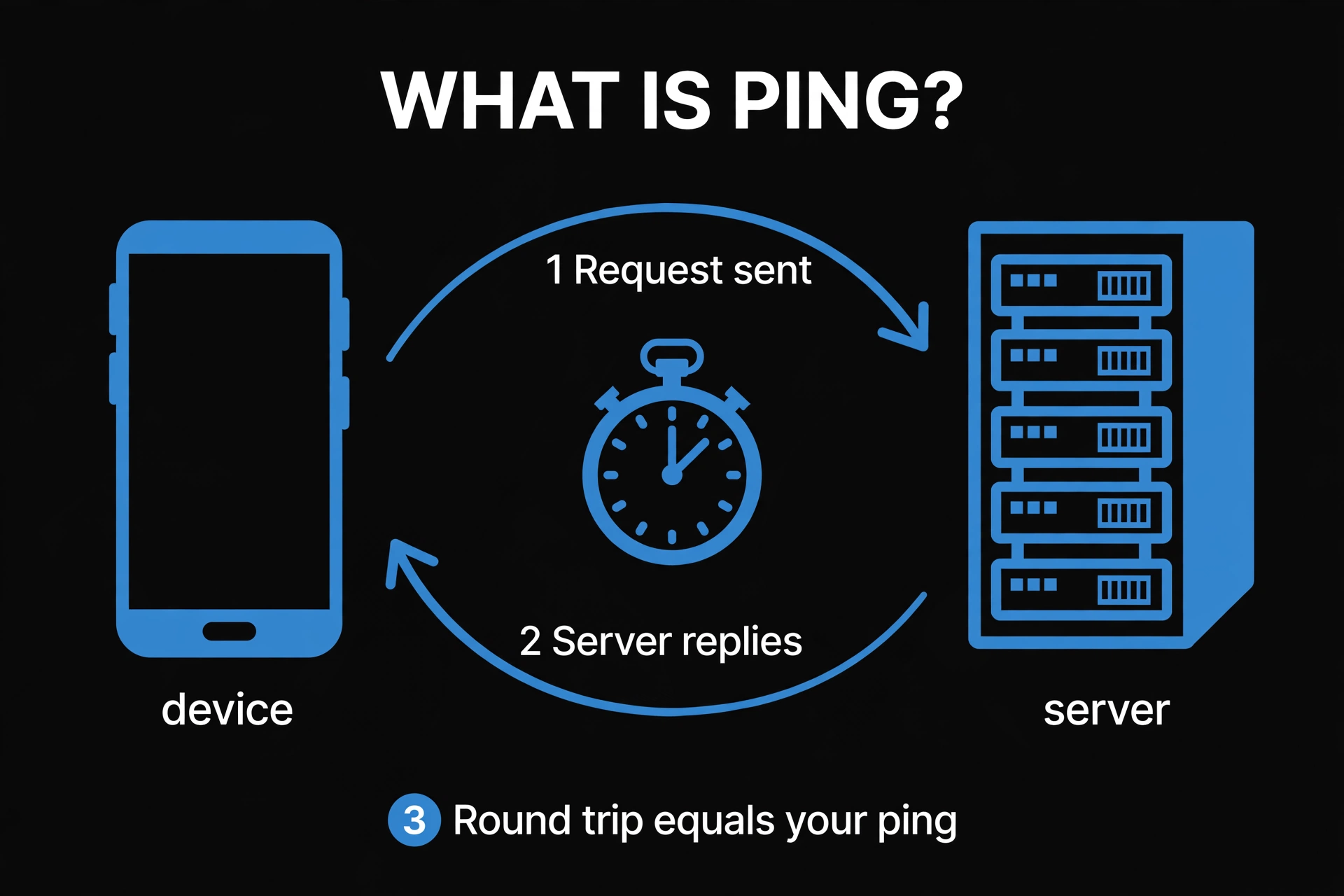
This free roblox ping test checks how fast and stable your internet connection is, right in your browser, with one click. It measures HTTP round-trip time to test servers using fetch() requests, so it is a connection-health check and not a direct Roblox server ping. If your result is fast and steady here, your side of the connection is healthy. For the real in-game number, use Roblox’s own Performance Stats (explained below).
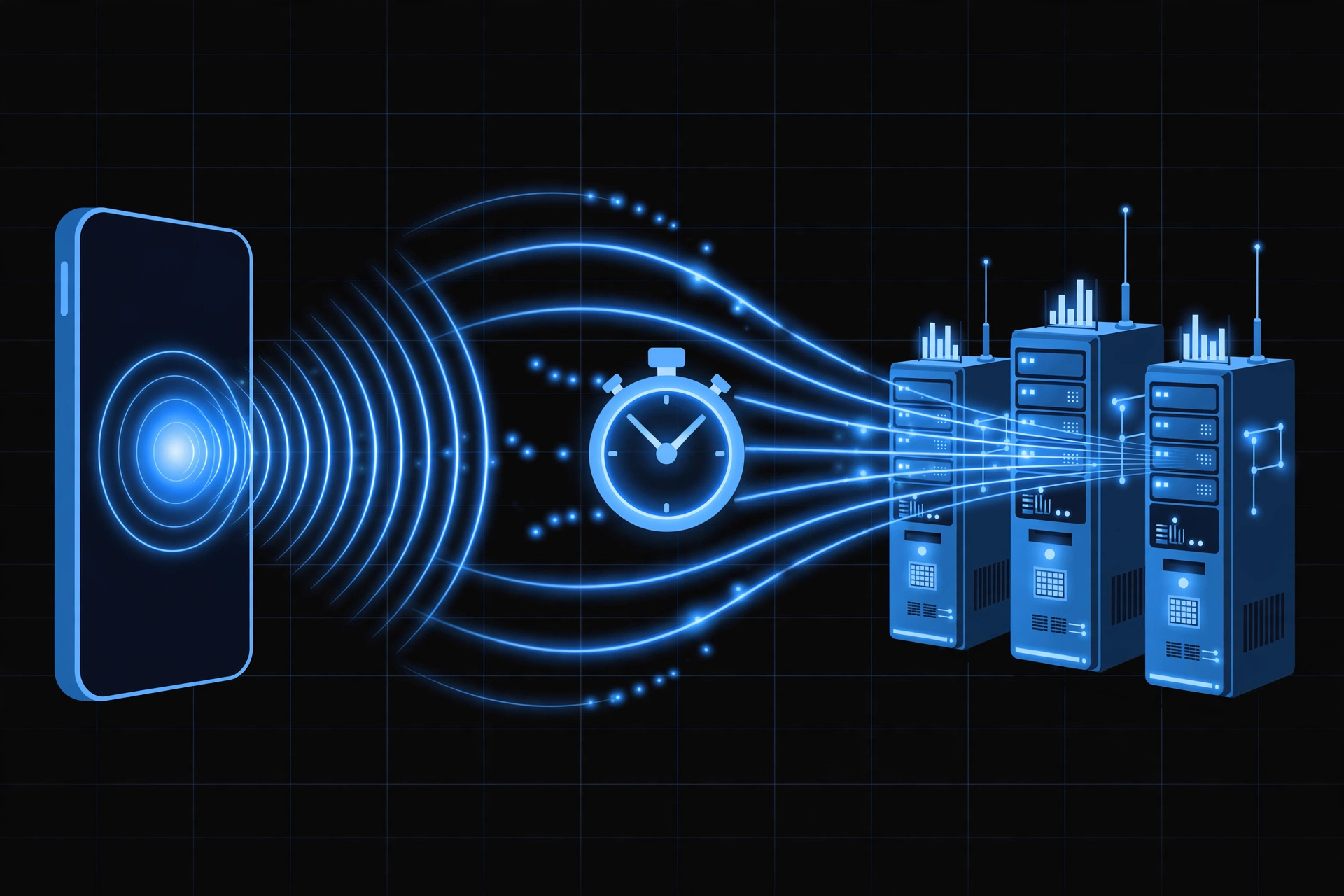
Press Start test. The tool sends 10 small requests to each of 3 test servers and measures how long every round trip takes from your browser. You get your average ping, jitter (how much the ping jumps around), packet loss, and a simple grade.
| Server | Min | Avg | Max | Jitter | Loss |
|---|
What this measures (honestly)
- HTTP round-trip latency from your browser. Each ping is a small fetch() request to a test server and back, timed with millisecond precision. That is the same path your game traffic takes through your router, your ISP, and the wider internet.
- It is NOT your Roblox server ping. Roblox game servers are different machines in different places. For the real in-game number, open Roblox own Performance Stats with Shift+F5 on PC while you play.
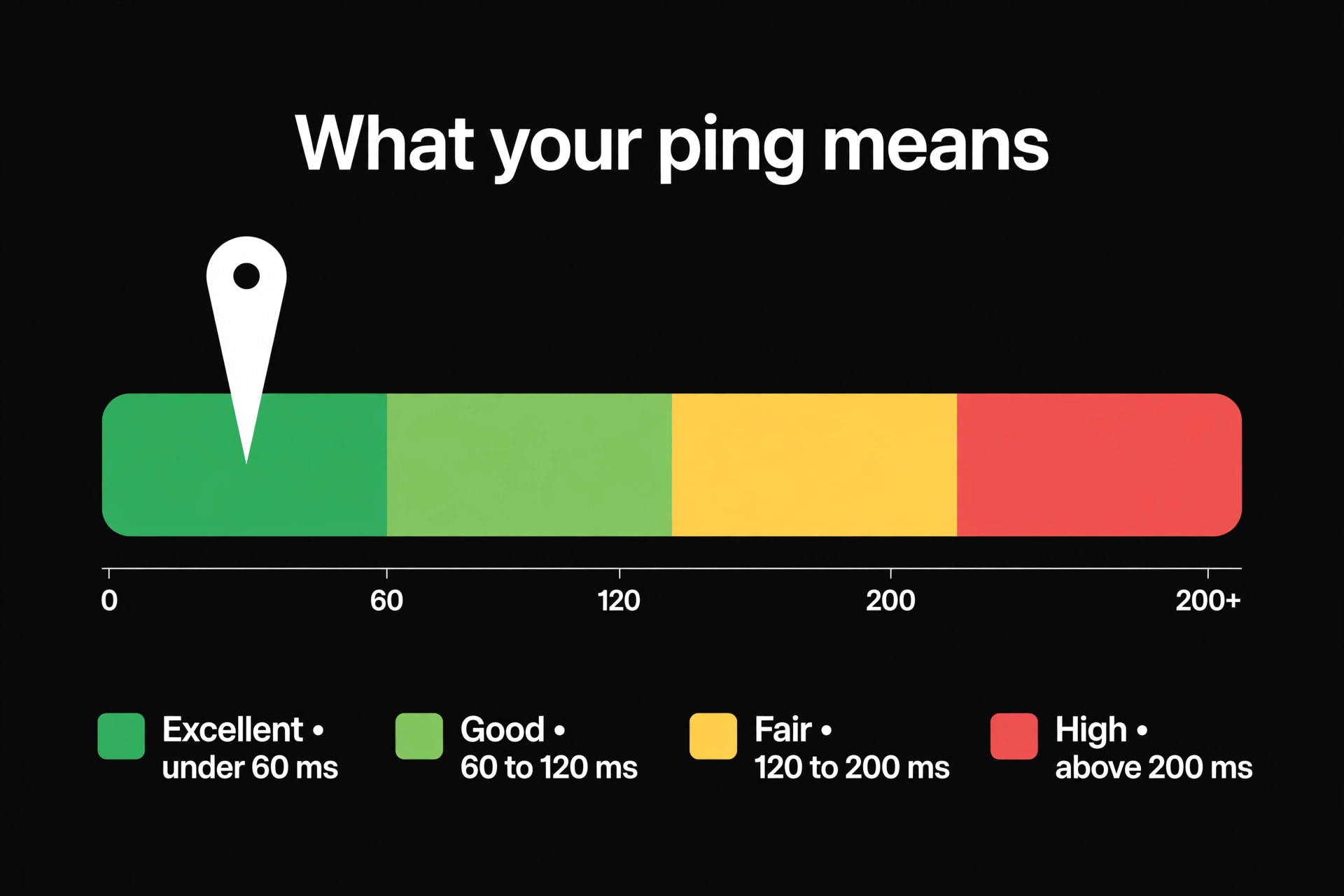
- Grades: under 60 ms is Excellent, 60 to 120 ms is Good, 120 to 200 ms is Fair, and anything above 200 ms is High.
- Watch jitter, not just the average. A steady 90 ms feels smooth; a ping that jumps between 40 and 300 ms feels terrible. Jitter above 30 ms means an unstable connection.
Use it as a connection-readiness check: if all three servers answer fast and steady here, your side of the connection is healthy and any lag in game is coming from elsewhere.
What this online ping test measures (honestly)
This online ping test sends small web requests from your browser using fetch() and times how long each reply takes to come back. That is a round trip, measured in milliseconds (ms). It runs against three test servers: our site’s CDN edge, Google and Cloudflare. Testing three different networks helps show whether a problem is on your side or just one route.
Here is what the tool can and cannot do:
- It measures HTTP round-trip latency from your browser to those web servers.
- It does NOT measure your ping to Roblox game servers.
- It does NOT send real ICMP packets, the kind the command-line ping tool uses. Browsers cannot do that.
- Browser overhead is included in each timing, so numbers can read a little differently from a command-line ping or an in-game meter. Compare results from this tool with other results from this tool.
- Packet loss is an estimate based on failed requests. It is not a true packet loss measurement.
Use these grades to read your ping result:
| Ping (ms) | Grade |
|---|---|
| Under 60 | Excellent |
| 60-120 | Good |
| 120-200 | Fair |
| Above 200 | High |
Two more numbers matter as much as the average. Jitter is how much your ping changes from one request to the next. On this tool, jitter above 30 ms means your connection is unstable. Packet loss is the share of requests that never got a reply. Above 5% typically shows up as teleporting and rubber-banding in a game.
A steady 70 ms often feels better than a ping that bounces between 25 ms and 150 ms. Always look at jitter, not just the average.
Roblox ping test: what your result means for Roblox
Your result here is a Roblox ping test only in the sense that it shows the health of your connection. Your in-game ping will differ, because the game measures the path to the specific Roblox server you were placed on, and that server may be far from you or close.
To see the real number, open Roblox’s Performance Stats. Press Ctrl+Alt+F7 on PC, or open the Roblox menu, go to Settings and turn on Performance Stats. Roblox’s own documentation says network ping is shown in the Performance Stats toolbar. Note that Shift+F5 is different: it shows FPS and debug stats, not ping.
On mobile, Performance Stats is also offered in the in-game Settings menu on some clients, but what it shows varies by client and version. If you cannot find a ping reading on your phone, use the test above as your main check.
Roblox does not publish an official “good ping” scale, so the bands below are this page’s own rule of thumb:
- Under 60 ms: movement, jumps and combat should feel immediate.
- 60-120 ms: fine for most experiences. Fast combat and precise platforming may feel slightly late.
- 120-200 ms: casual and social games are okay, but timing-heavy games can feel laggy.
- Above 200 ms: expect rubber-banding and missed inputs.
Most Roblox games do not let you pick a server region. Roblox assigns your server automatically, so you cannot choose one yourself. If you land on a laggy server, leaving and rejoining the experience often places you on a different one. Third-party browser extensions claim to add a region picker, but they are unofficial and need access to your Roblox browsing data, so we do not recommend them.
Why is my ping so high in Roblox?
High ping usually comes from one of a handful of causes. Here are the common ones:
- Wi-Fi interference or distance: walls, distance and neighbors’ networks make wireless delay vary from moment to moment.
- ISP congestion at peak hours: if your ping is fine in the morning and worse in the evening in every game, the slowdown is probably upstream of your home.
- Background downloads and streams: another device filling your connection makes your game packets wait in line.
- A VPN: it adds an extra stop between you and the game, which usually raises ping rather than lowering it.
- Uncapped FPS: very high frame rates can use up CPU and GPU time, and community reports link this to ping spikes (see below).
- An old or overloaded router: routers that have run for weeks or struggle with many devices can add delay.
- Phone battery saver or a weak signal: both can slow your phone’s network and make mobile Roblox feel laggy.
The uncapped-FPS link comes from community reports, not from Roblox. In an October-November 2025 Microsoft Q&A thread, one player said that with FPS uncapped at roughly 500 to 1,200, ping would spike far above normal in Roblox only. Capping FPS at 240 or 360 stopped it for them, and a moderator suggested capping at 240 or 360. It was one player’s case, and their friends at similar frame rates did not see the problem. Treat it as something worth trying, not a proven rule. Roblox’s own default cap is 60 FPS, and its settings let Windows players raise it to 240.
Why does my ping spike to 1000?
Spikes like that are common in community reports. In 2024 Microsoft community threads, players described ping jumping above 1,000 in Flag Wars when they fired weapons or interacted with objects, even with stable internet in other games. One thread was never resolved. In a related thread, a player said resetting Windows network settings fixed spikes above 4,000. These are community reports, not confirmed causes, but they show that spikes can come from the game, the PC or the network.
How to reduce ping in Roblox
If you want to know how to reduce ping in Roblox, work through this checklist in order. It is also the best starting point for how to fix lag spikes.
- Use a wired connection, or move closer to your router. Cables avoid wireless interference and make delay steadier.
- Close background apps and downloads. Streaming, game updates and cloud backups compete with Roblox for your connection.
- Restart your router. It clears a router that has been running a long time.
- Cap your FPS. Try 240 or lower. This is based on the community reports above, so test whether it helps you.
- Switch to 5 GHz Wi-Fi. It is usually less crowded than 2.4 GHz, though it has a shorter range.
- Update your network drivers. Outdated drivers can cause dropouts and delay.
- Turn your VPN off while gaming. A VPN adds a hop, so it usually adds delay. In a rare case where your ISP routes badly, a VPN can help, so measure with it on and off before deciding.
- Contact your ISP if the problem persists. If wired results are still slow or spiky at certain hours, the cause may be outside your home.
Test with this ping checker before and after each change, so you know which one actually worked.
Ping vs FPS vs packet loss: which one is lagging you?
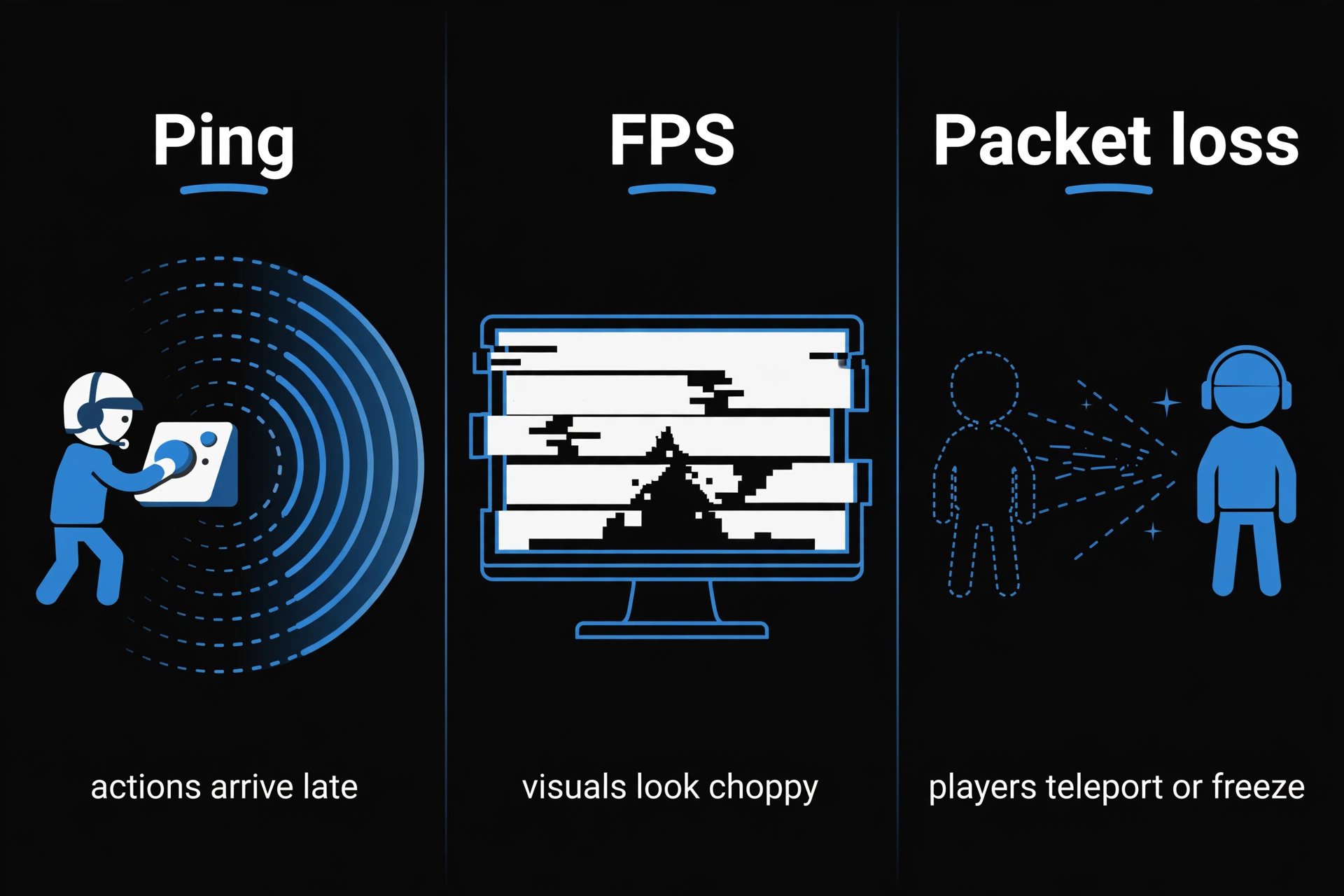
Ping, FPS and packet loss feel similar in a game, but they are three different problems.
Ping is delay. High ping means your actions reach the server late, so everything feels sluggish.
FPS is smoothness. It is how many frames your device draws each second. Low or uneven FPS makes the picture choppy even when your connection is perfect. If your FPS is the issue, check it with our FPS Checker.
Packet loss is missing data. It does not slow everything evenly. It makes players teleport and your character snap back.
Here is how to tell them apart:
- Controls feel delayed, but the picture is smooth: that points to high ping.
- The picture stutters, but ping is steady: that points to FPS or your device. If it also stutters in a game with no other players, it is not the network.
- Everything is fine, then you snap back or others teleport: that points to packet loss or high jitter.
- Ping rises while FPS stays steady: the connection or server is the likely cause.
- FPS drops while ping stays normal: the device or graphics settings are the likely cause.
Run this ping test, then open Performance Stats in the game to check ping and FPS side by side. Compare them at the moment the lag happens.
Ping test FAQs
Yes, this ping test is free to use and runs in your browser, with nothing to download.
No. It measures HTTP round-trip time from your browser to test web servers, not to Roblox game servers. For your real in-game number, use Performance Stats (Ctrl+Alt+F7 on PC, or Settings on supported mobile clients).
Under 60 ms is excellent and 60-120 ms is good for most experiences. Roblox does not publish an official scale, so these are rule-of-thumb bands. Steady ping matters as much as a low number.
Because internet speed and ping are different things. A fast connection can still have high delay from Wi-Fi interference, congestion at your ISP, a far-away Roblox server, or a busy router. Run the test again on a wired connection to see whether Wi-Fi is the cause.
Usually no. A VPN adds an extra hop, so it more often raises ping. It can help in a narrow case where your ISP routes traffic badly, so test with the VPN on and off and compare.
Yes. This internet ping test works in a mobile browser on both Wi-Fi and mobile data. Test on the same network you play on, since a phone on Wi-Fi in another room can give very different results from your PC.