

Gamepad Not Detected Fix Guide
Gamepad not detected is usually a connection or ownership problem, not a dead controller. The controller is often fine, and something is hiding it: it has not sent any input yet, the cable or pairing is bad, or another program has grabbed it.
This guide runs from the fastest fix to the slowest. Each step says what to look for, so you can stop as soon as your controller appears in our Gamepad Tester.
Quick Answers: Gamepad Not Detected
The five most common causes, in order of likelihood:
- No input sent yet. Click the page, then press a button or move a stick.
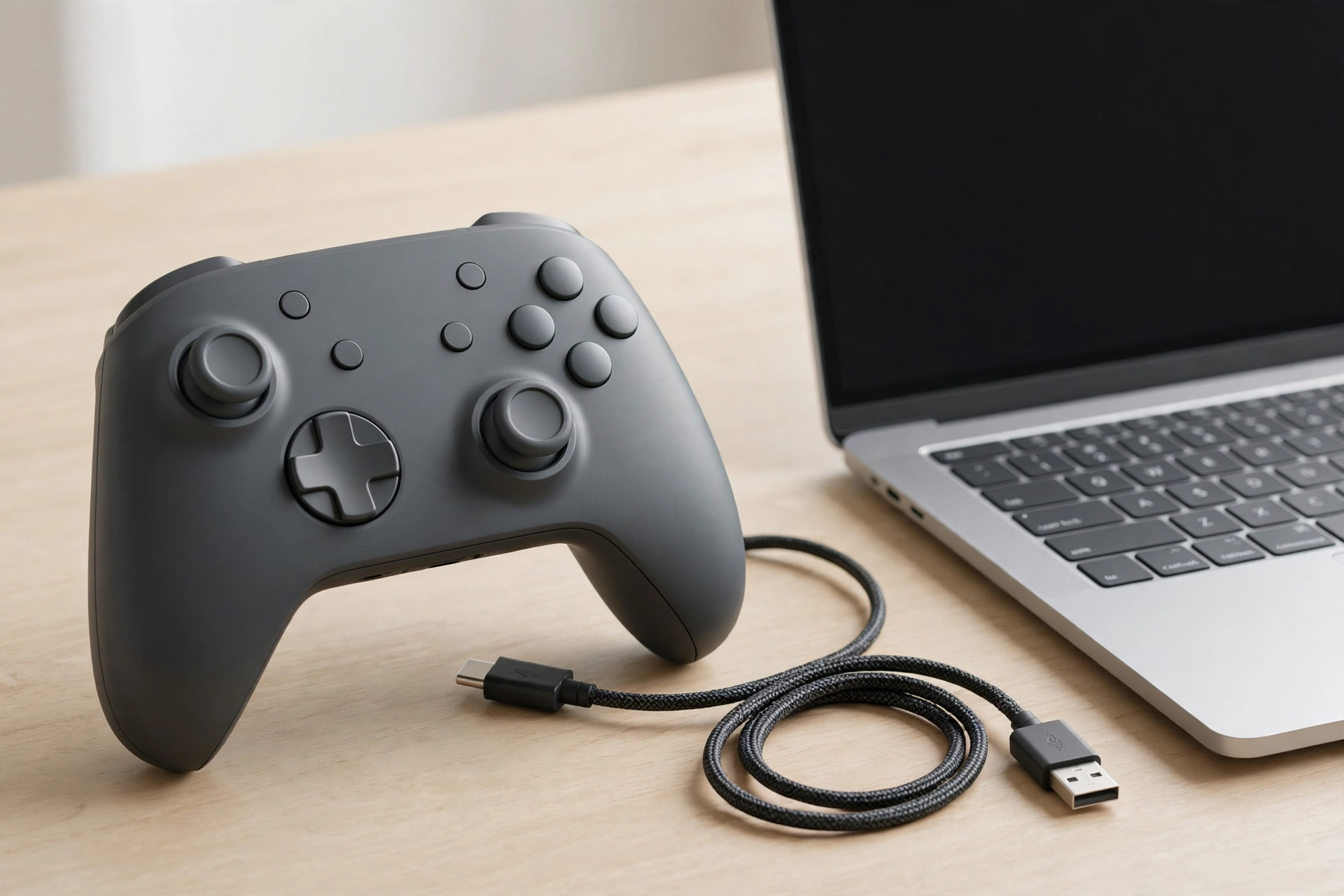
- Bad cable or port. Use a cable that carries data and try a different USB port.
- Stale Bluetooth pairing. Remove the controller in Windows, put it in pairing mode, and pair it again.
- Another program has it. Close Steam, DS4Windows, reWASD and similar tools, then reconnect the controller.
- Browser problem. Reload the page, try a second browser, and make sure you are on an HTTPS page.
Why a Gamepad Shows as Not Detected
The browser only sees a controller after input
Websites read controllers through the browser’s Gamepad API. If a controller is already connected when a page loads, the browser exposes it only after you press a button or move a stick. MDN documents this behavior.
This is deliberate. It stops pages from quietly listing your devices.
The result is easy to misread. A controller that is paired and powered but idle can look completely absent. It is not broken. It just has not spoken yet.
The API also works only on secure (HTTPS) pages, and embedded frames need the hosting site to allow it. Chrome and Firefox do not show a gamepad permission prompt the way they do for a camera. Access is controlled by those site-level rules instead.
When the gamepad tester shows no input
“Gamepad tester shows no input” can mean two different things:
- Nothing is listed at all. This is a detection problem. Work through the checklist below.
- A controller is listed but buttons do nothing. The browser may be reading a virtual controller from a remapping tool rather than your physical one. Step 5 covers this.
USB vs Bluetooth
Over USB, Windows detects the controller when it is plugged in, and the cable supplies power. Some cables only charge, so they never show a device.
Over Bluetooth, more things can go wrong: pairing state, battery level, distance, and whether the controller is still paired to another device. Sony states that a DualSense can be paired with only one device at a time. USB removes the pairing and battery variables, so it makes the best first comparison.
Windows and HID detection
Windows treats most controllers as game controllers on its Human Interface Device (HID) layer. If Windows does not list the controller, the browser cannot see it either. A controller not detected in Windows and a controller detected in Windows but missing in the browser are two separate problems with different fixes.
Diagnose Gamepad Not Detected, Step by Step
Work down the list. Stop when the controller appears.
- Wake the controller. Click anywhere on the tester page so it has focus, then press a face button and move both sticks. Keep the tab in front.
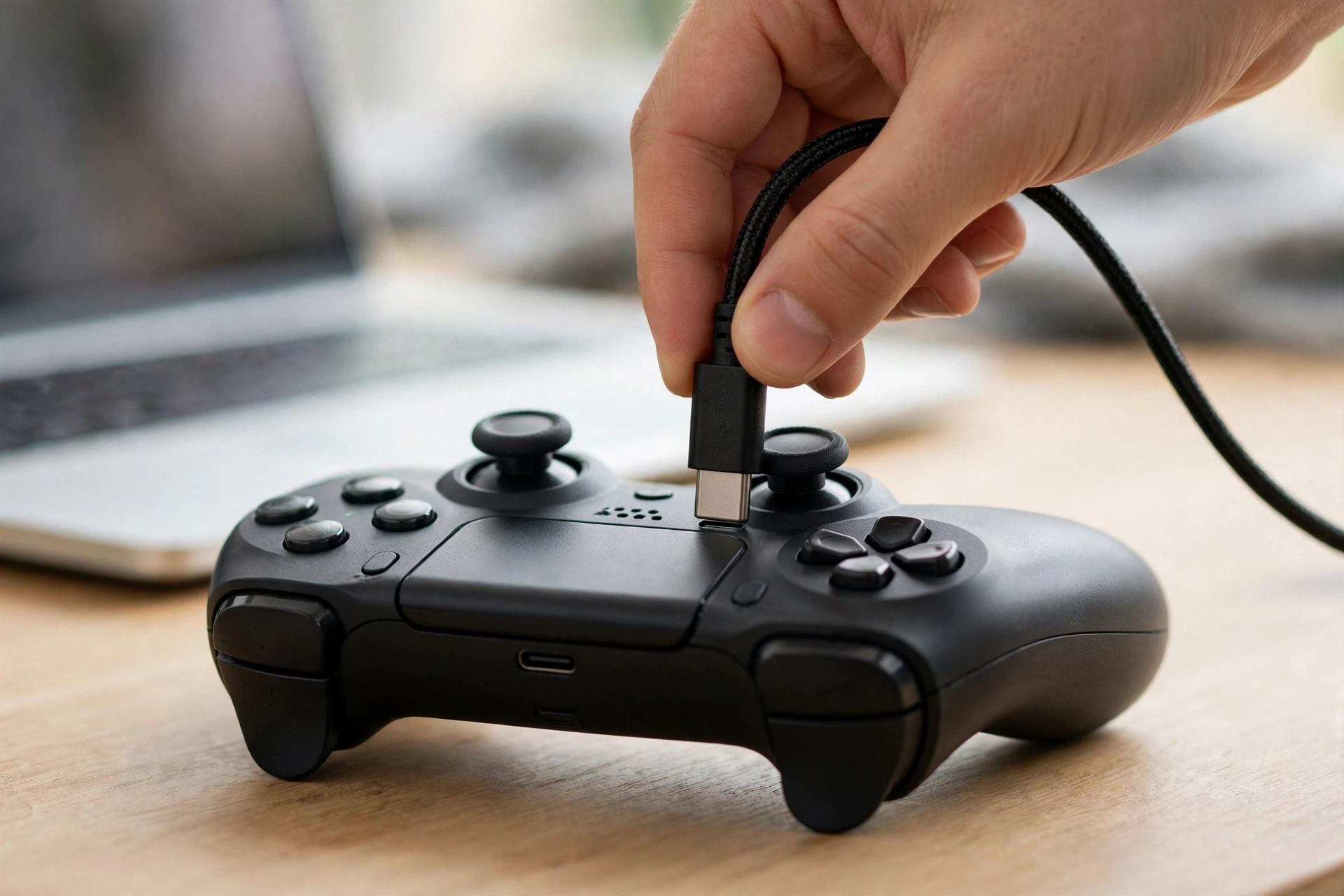
- Try another USB port and cable. Plug straight into the PC, not a hub. Swap to a cable you know carries data. For a Switch Pro Controller, any USB-A to USB-C or USB-C to USB-C data cable works, and the one in the box is the easiest choice.
- Check that Windows sees the controller. Press Windows + R, type joy.cpl, and press Enter. A detected controller appears in the list, and its Properties window lets you test inputs. Open Device Manager and expand Human Interface Devices. Look for a “HID-compliant game controller” entry or one carrying the controller’s name. If the controller shows up in joy.cpl but not in the browser, skip to step 5. If it shows up nowhere, keep going.
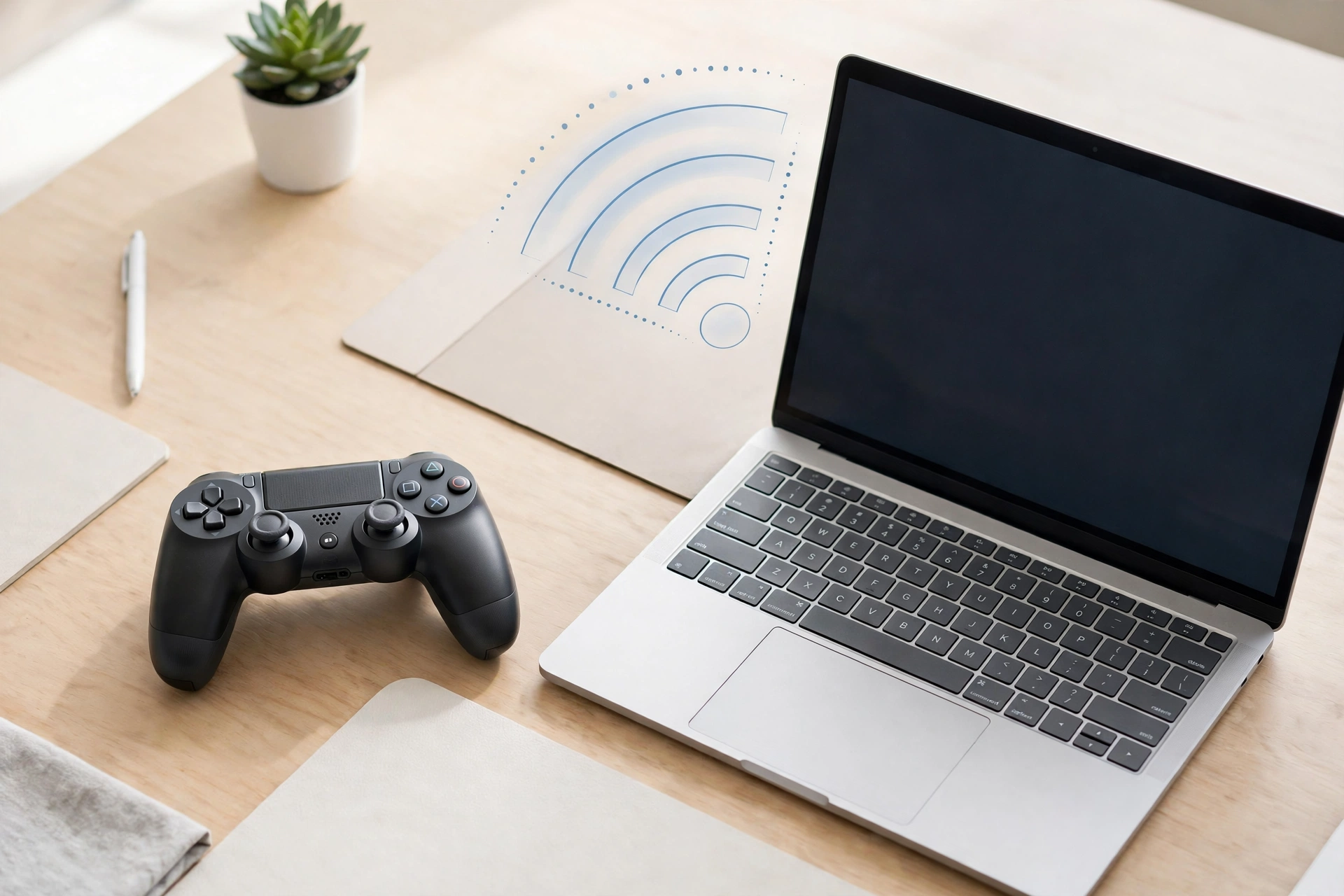
- Check Bluetooth pairing. Open Settings > Bluetooth & devices and confirm Bluetooth is on. If the toggle is missing, the PC may have no Bluetooth adapter. Use a USB cable, or add a USB Bluetooth adapter. If the controller is listed but will not connect, remove it, put it back into pairing mode, and pair again. Connect one controller at a time while testing. If the controller was last used with a console or phone, pair it again for the PC.
- Close programs that take control of the controller. Steam, DS4Windows, reWASD and JoyToKey can grab a controller or replace it with a virtual one. DS4Windows’ wiki explains its “Hide DS4 Controller” mode. It takes exclusive access to the physical pad and blocks other apps from seeing it. It also says DS4Windows must open the controller first for this to work. Close the tool completely, then unplug and replug the controller (or re-pair it). If a different controller type shows up in the tester than the one you plugged in, a remapper is converting it.
- Check the browser. Confirm you are on an HTTPS page. Reload with the controller connected, then press a button. Open a private window with extensions off to rule out an extension. In Firefox, privacy.resistFingerprinting in about:config is listed in Mozilla’s bug tracker as disabling getGamepads(). If you turned that setting on, switch it off for the test.
- Try another browser. Chrome, Edge and Firefox all support the Gamepad API, but behavior differs between them. One report on WebKit’s bug tracker had only one of three controllers recognised in a WebKit browser while all three appeared in Chrome. If a second browser shows the controller, the first one is the problem.
- Rule out battery and interference. A low battery can stop a wireless controller from connecting or make it drop out. Plug it in over USB for the test. For Bluetooth, move the controller close to the PC and away from other wireless devices.
- Try another device. Plug the same controller into another computer. If it works there, the controller is fine and the first PC is the problem. If it fails there too, go to the hardware section below.
Symptoms When a Controller Is Not Showing Up on PC
| Symptom | Most likely cause | Fix to try first |
|---|---|---|
| Tester says it is waiting, controller is connected | No input sent yet | Click the page, press a button, move a stick |
| Paired in Bluetooth settings, absent in the tester | Controller idle or asleep | Press a button, then reload the page |
| Appears in joy.cpl, not in the browser | Remapper, focus or browser issue | Close Steam and DS4Windows, try another browser |
| Not in joy.cpl or Device Manager over USB | Charge-only cable or bad port | Data cable, different port |
| Wrong controller type shows up | Remapper creating a virtual controller | Close the remapper and reconnect |
| Not listed in Bluetooth search | Not in pairing mode or paired elsewhere | Enter pairing mode, remove old pairing, pair again |
| Keeps dropping out | Low battery, distance or loose cable | Test over USB with a different cable |
| Shows in one browser only | Browser-specific behavior | Use the browser that works and update the other |
| Detected, but dead inside a game | Game or Steam Input settings | Check the game’s controller settings |
Controller-Specific Notes
Xbox
- Bluetooth pairing. Press the Xbox button to turn the controller on, then hold the Pair button for about three seconds until the Xbox button flashes quickly. Choose “Xbox Wireless Controller” in Windows Bluetooth settings.
- Xbox Wireless Adapter. If you use the adapter instead of Bluetooth, pair the controller to the adapter, not through the Bluetooth menu.
- Xbox 360 wireless. These controllers need the Xbox 360 Wireless Receiver for Windows. They do not pair over Bluetooth.
PlayStation
- DualSense Bluetooth. Hold the Create button and the PS button together until the light bar blinks, then pick the controller from the Bluetooth list. Windows may list it as “Wireless Controller”.
- DualShock 4. Pairing uses the PS and Share buttons held together.
- One device at a time. Sony says each device change needs a fresh pairing.
- Remappers. If you use DS4Windows or Steam Input, the browser may see a virtual controller instead of the physical one.
Switch Pro
- Pairing. Hold the small Sync button on top, next to the USB-C port, until the lights flash. It appears in Windows under a Pro Controller name.
- USB comparison. Wired USB-C is the quickest way to separate a pairing problem from a controller problem.
- Steam. Steam has its own Switch Pro settings and can claim the controller, so close it when testing detection.
Generic PC controllers
- No shared pairing step. If yours came with a USB receiver, connect through it and follow the maker’s instructions.
- Mapping can differ. Not every generic pad follows the standard button layout, so button numbers or labels may look different even when detection is fine.
Confirm the Fix on Our Gamepad Tester
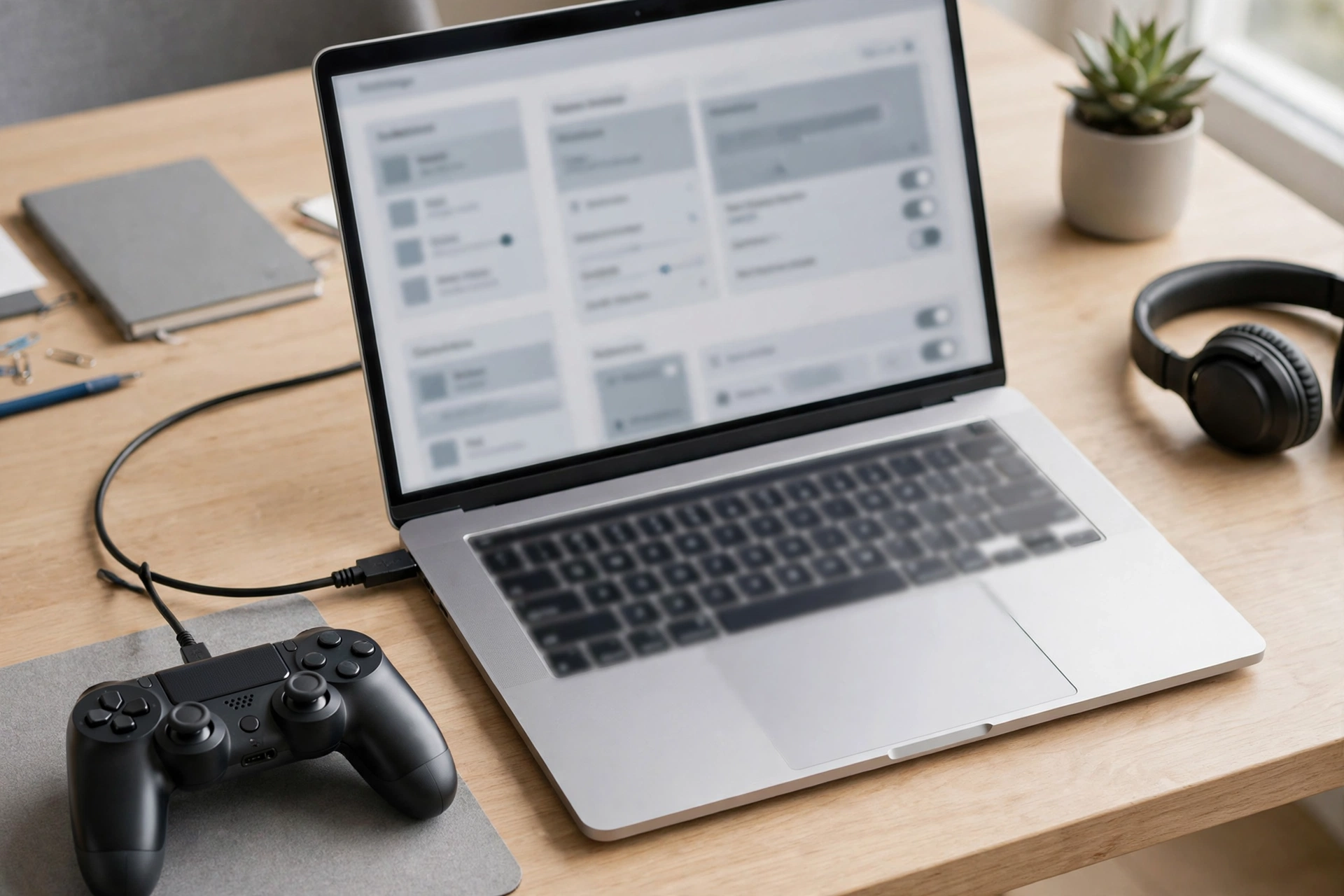
Open the Gamepad Tester, connect your controller by USB or Bluetooth, and press any button. No install or sign-up is needed.
When detection works:
- The controller appears in the tester once you press a button.
- Each button shows live as you press it.
- Sticks and triggers move on screen as you move them.
- The vibration test responds where your controller and browser support it.
If the controller appears but a stick moves on its own, that is a different problem. See the stick drift guide.
If the tester detects the controller but a game does not, the issue is in the game or its controller settings, not detection.
When It Is Probably Hardware
Settings are not the cause when you see these signs:
- The controller appears in neither joy.cpl nor Device Manager on any port, using a cable you know carries data.
- It fails on a second computer too.
- It fails over both USB and Bluetooth.
- It will not power on or show any light after charging.
- It connects only when the cable is held at an angle. The cable or port is worn.
The honest next step is to isolate the part. Swap in a different data cable, try a rear port on a desktop, and try a second computer. If the controller fails everywhere, contact the maker or retailer about repair or replacement.
If it works on another computer, leave the controller alone and look at the first PC’s ports, Bluetooth adapter and software.
Frequently Asked Questions
Why is my gamepad not detected even though it is plugged in?
Most often the browser has not seen input from it yet. Click the page and press a button. If that fails, try another USB port and cable, then check that Windows lists the controller in joy.cpl.
Do I need to install a driver to fix a controller not detected?
Usually not for Xbox, PlayStation and Switch Pro controllers connected by USB or Bluetooth. Windows handles the common ones itself. Start with the cable, port and pairing steps, and avoid downloading drivers from unknown sites.
Why is my controller paired in Bluetooth but missing in the browser?
Paired only means Windows knows the device. The browser still needs input from it, so press a button with the tester page focused. If that fails, remove the pairing and pair again.
Can Steam or DS4Windows cause a gamepad not detected error?
Yes. These tools can take exclusive control of a controller or replace it with a virtual one. Close them completely, then reconnect the controller.
Why does my controller show up in one browser and not another?
Browsers handle the Gamepad API differently, and settings or extensions can block it in one of them. Update both, use a private window, and keep the browser that shows the controller.
How do I tell whether the controller or the computer is at fault?
Plug the controller into a second device. If it works there, the first computer is the problem. If it fails there too, suspect the cable, battery or controller.
Related Guides
Gamepad Tester: the free browser tester for checking buttons, sticks, triggers and vibration once your controller is detected.