

How to Test a Bluetooth Controller Online (Wireless Pad Check)
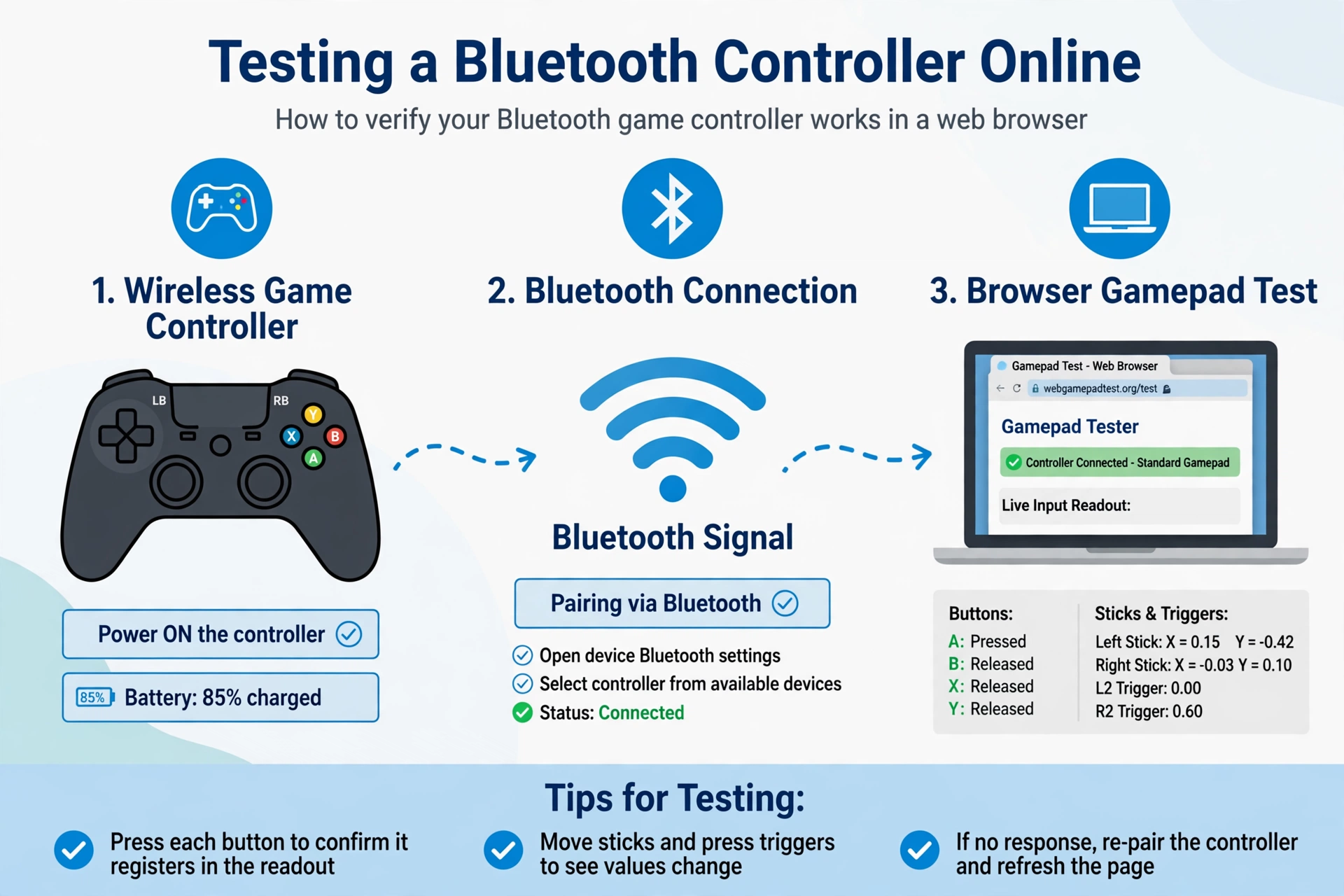
If you want to test a Bluetooth controller, the fastest route is a browser-based gamepad tester. Pair the controller to your device first, open the tester, press a button, and watch what registers. This guide walks through that process and explains what the results mean.
Quick Answers
| Question | Short answer |
|---|---|
| Can a browser test a Bluetooth controller? | Often yes. Many modern browsers can read a connected gamepad, but support varies by browser and device. |
| What should I do first if it does not appear? | Press a button on the controller while the tester page is open, then confirm the controller shows as connected in your Bluetooth settings. |
| What is the difference between a wired and wireless test? | The steps are the same. A wired test removes the wireless link, so it helps you tell a controller fault from a connection fault. |
| Do I need to install anything? | Usually not. A browser-based tester runs on the page, though your device must be able to pair the controller. |
Pair it before you test it
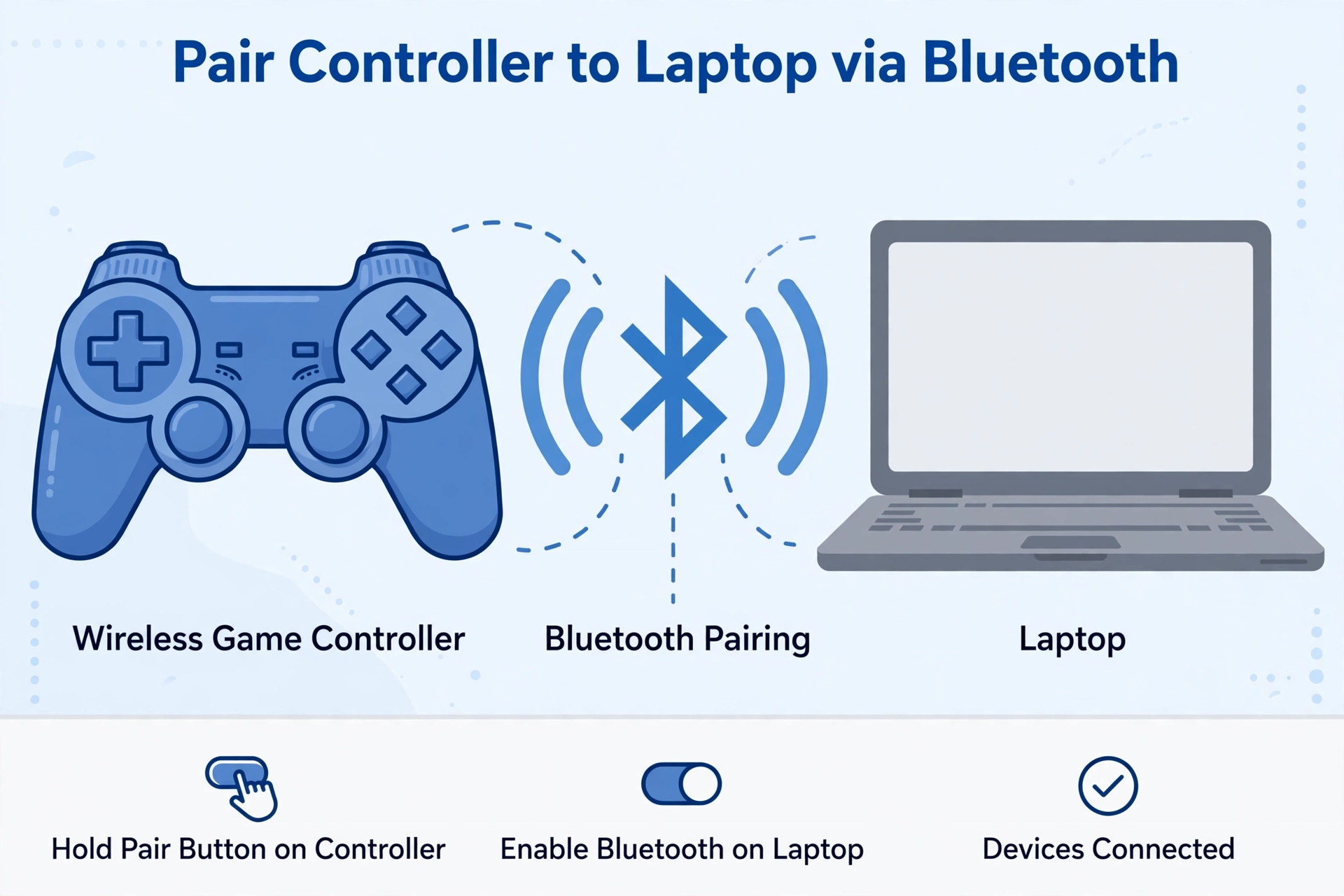
A Bluetooth controller must be connected to your device before any online tester can see it. The browser does not do the pairing for you.
Open your device’s Bluetooth settings first. Do not start with the tester page.
Put the controller into pairing mode. The method differs between controller models, so check the manual or the manufacturer’s support page for the exact button combination.
Select the controller from the list of available devices in your settings.
Then check the status carefully. “Paired” and “connected” are not the same thing. A paired controller has been saved by your device. A connected controller is actively talking to it right now.
If your device lists the controller as paired but not connected, turn the controller on again and wait a few seconds. Only move on once it shows as connected.
How to test a Bluetooth controller online, step by step
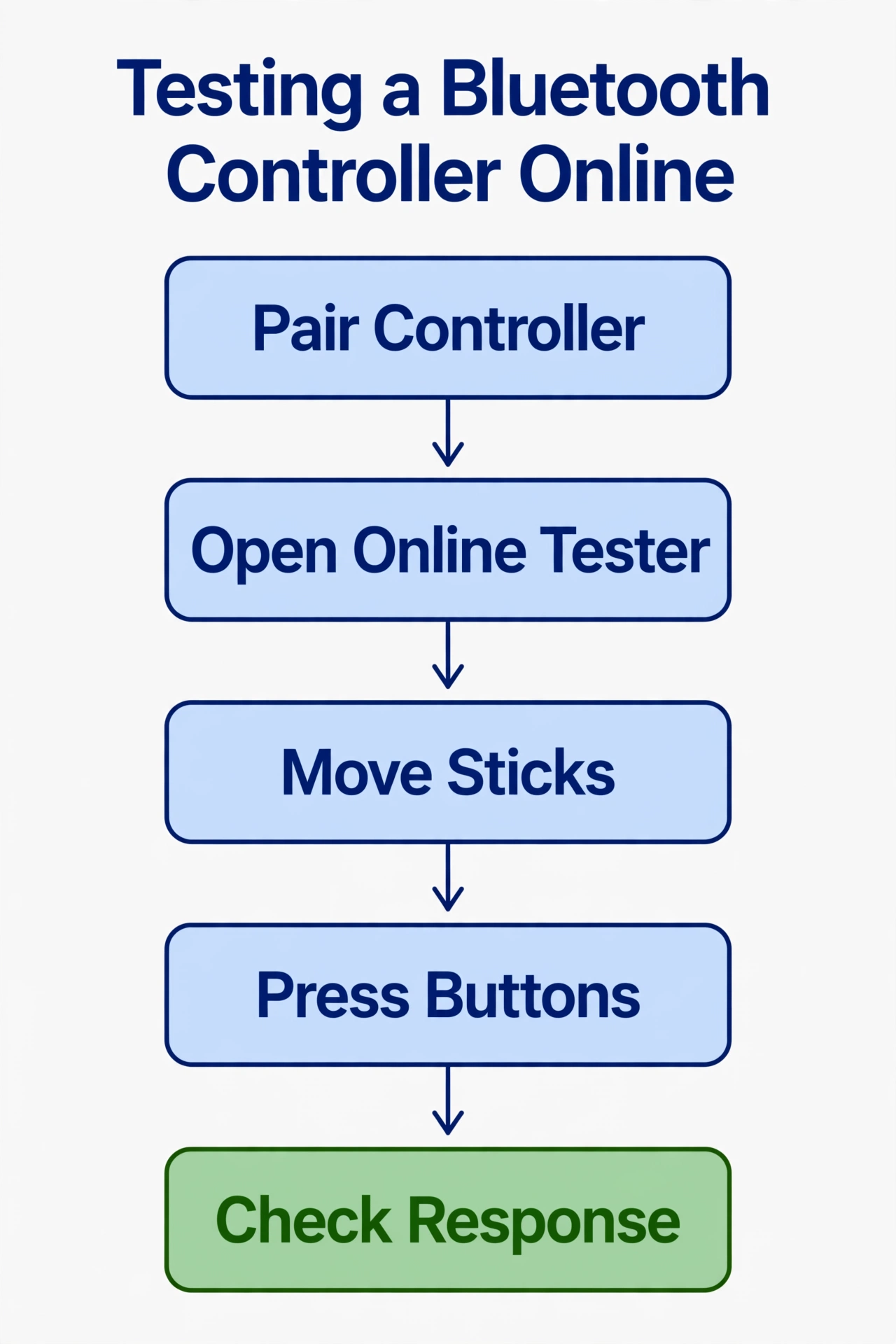
Once the controller is connected, a bluetooth controller test online takes only a few minutes. You can use the gamepad tester hub on this site as your starting point.
- Step 1: Open the tester. Load the gamepad tester page in your browser.
- Step 2: Wake detection. Press any button on the controller. Browsers usually do not report a gamepad until it sends its first input, so a blank page does not always mean a fault.
- Step 3: Test the buttons. Press each face button, bumper, and menu button one at a time. Each press should light up or change on screen.
- Step 4: Test the sticks. Move each stick slowly in a full circle. Then release it and see whether it returns to center. A stick that keeps reading movement at rest may point to drift.
- Step 5: Test the triggers. Squeeze each trigger gradually. Many triggers report a range of values, not just on or off, so look for a smooth change.
- Step 6: Test the D-pad. Press each direction, then try diagonals. Each press should register once and clearly.
- Step 7: Watch for lag and dropouts. As you play with the controller, note any delay between your press and the on-screen reaction. Also note if inputs stop for a moment and then return.
Take your time with this part. A short test can miss a problem that only appears after a minute or two of use.
What the results tell you
A wireless controller check gives you clues, not a final verdict. Use the table below as a starting point.
| What you see | What it suggests | What to do |
|---|---|---|
| All inputs register cleanly | The controller and connection are working in this test | Nothing needed. Retest later if problems appear in games |
| Inputs register with delay | A weak or crowded wireless link, or a busy device | Move closer, reduce nearby wireless devices, then retest. Compare with a wired test |
| Inputs drop in and out | An unstable connection, low battery, or interference | Charge the controller, shorten the distance, and retest. Try another device |
| Controller appears, then disappears | The connection is being lost or taken by something else | Check whether another device is holding the connection, then re-pair |
| Nothing appears at all | The controller is not connected, or the browser cannot read it | Confirm “connected” status, press a button on the page, and try another browser |
These are general patterns. Your own case may differ depending on the controller, browser, and device.
Bluetooth-specific problems
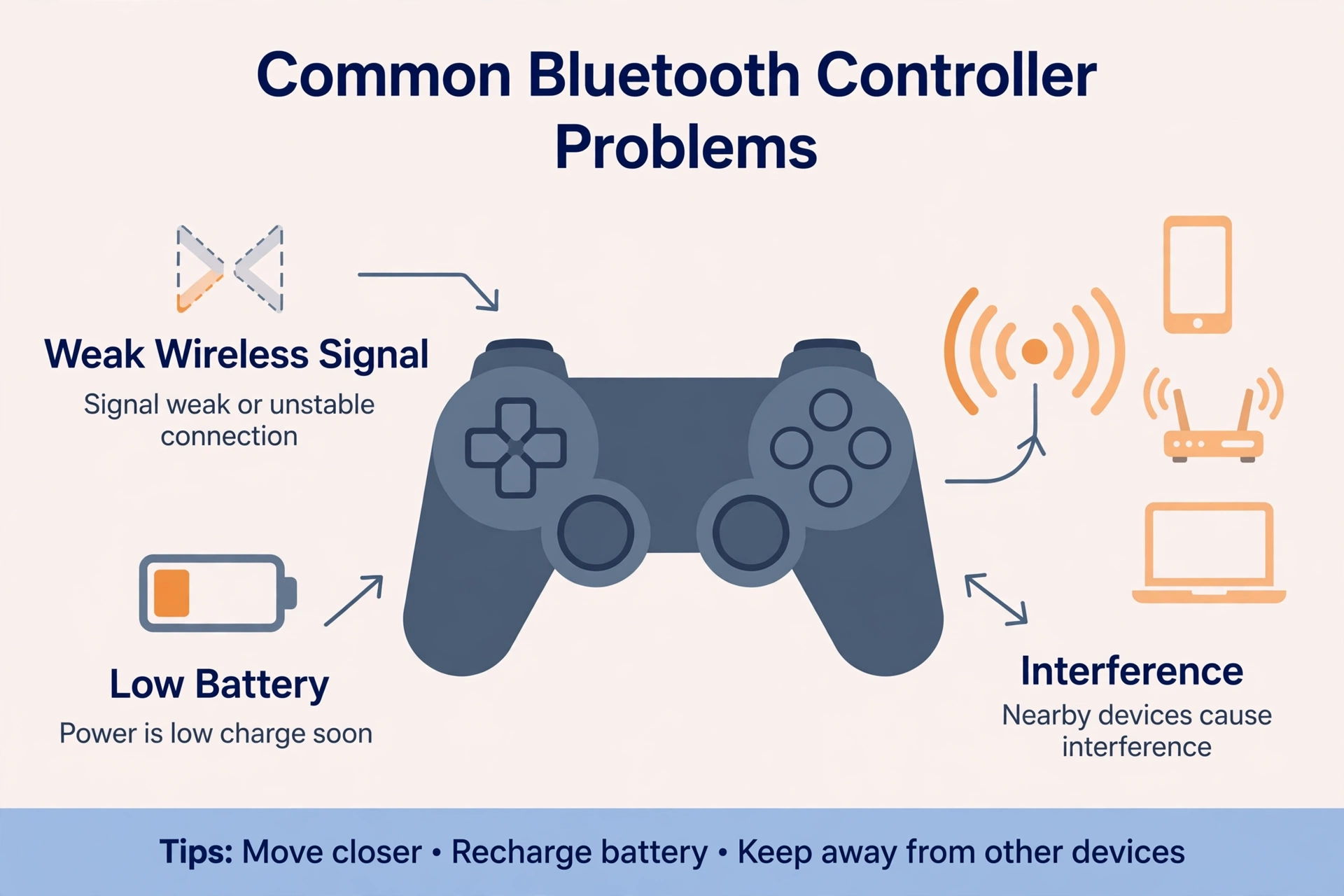
Wireless links add a few problems that a cable does not. These are the common ones, described in general terms.
Low battery. A weak battery can cause unstable behavior. Charge the controller fully or swap in fresh batteries before drawing any conclusions.
Distance and interference. Walls, other wireless devices, and long distances can weaken the link. Test at close range with a clear line between the controller and the device.
Another device holding the connection. Many controllers remember the last device they paired with and may reconnect to it automatically. If a console, phone, or tablet nearby grabs the controller, your test device will not see it. Turn off Bluetooth on those other devices, or switch them off for the test.
Browser or device support limits. Not every browser or device handles gamepads the same way. If one browser shows nothing, try another before blaming the controller. Support can differ between phones, tablets, and computers, so do not assume a result on one device will match another.
Wired test as a comparison
A wired test is the best way to separate a controller problem from a wireless problem. If your controller supports a cable connection, repeat the same steps with the cable plugged in.
Open the tester, press a button, then check the buttons, sticks, triggers, and D-pad in the same order. Watch for the same lag or dropouts.
Compare the two results: • If the wired test is clean and the wireless test is not, the wireless link is the likely problem, not the controller itself. • If both tests show the same fault, such as a stick that reads movement at rest, the controller hardware is the likely cause.
Keep in mind that not every controller works over a cable, and some cables only charge. Check what your model supports.
When to stop troubleshooting wireless
There is a point where more tweaking is not helpful. Be honest with yourself about it.
Stop chasing wireless fixes if you see any of these: • Repeated dropouts across different devices and browsers • Signs of physical damage, such as cracked casing, loose buttons, or a bent connector • A battery that no longer holds a charge for a useful time
At that stage, the honest answer is to play with a cable if your controller allows it, or to replace the controller. Spending hours on a failing wireless link rarely pays off.
If you came here while setting up a mobile or PC session, the Delta Executor status page is a separate place to check general status information. It does not tell you anything about your controller.
FAQ
Do I need an app to test a Bluetooth controller?
No, usually not. A browser-based gamepad tester can read a connected controller without an install, though your device still has to pair with the controller first.
Why does my controller pair but not show in the tester?
It is often connected at the system level but has not sent an input to the browser yet. Press a button while the tester page is open, confirm the status is “connected,” and try another browser if nothing changes.
Does Bluetooth add lag?
It can, depending on the controller, the device, and the conditions around you. A wired comparison test is the simplest way to see whether the wireless link is adding delay in your case.
Can I test on a phone browser?
Often yes, but support varies by phone and browser. Pair the controller in your phone’s Bluetooth settings, open the tester, and press a button. If nothing shows up, try a different browser.
Why does it work on one device but not another?
Bluetooth support, browser behavior, and system settings differ between devices. A controller that works on one device may be blocked on another by one of those differences, so a result on one device does not prove the controller is faulty.
Should I reset the controller?
It is a reasonable step if pairing keeps failing or the controller connects to the wrong device. Check your controller’s manual for the correct reset method, then re-pair it and test again.
Related Guides
Related guides
How to check for stick drift on a controller (general guide to spotting and testing stick drift)
Related: if the controller never appears in the tester, see the Gamepad Not Detected Fix Guide.