

How to Test Controller Deadzone and Fix Stick Drift (Gamepad Tester Guide)
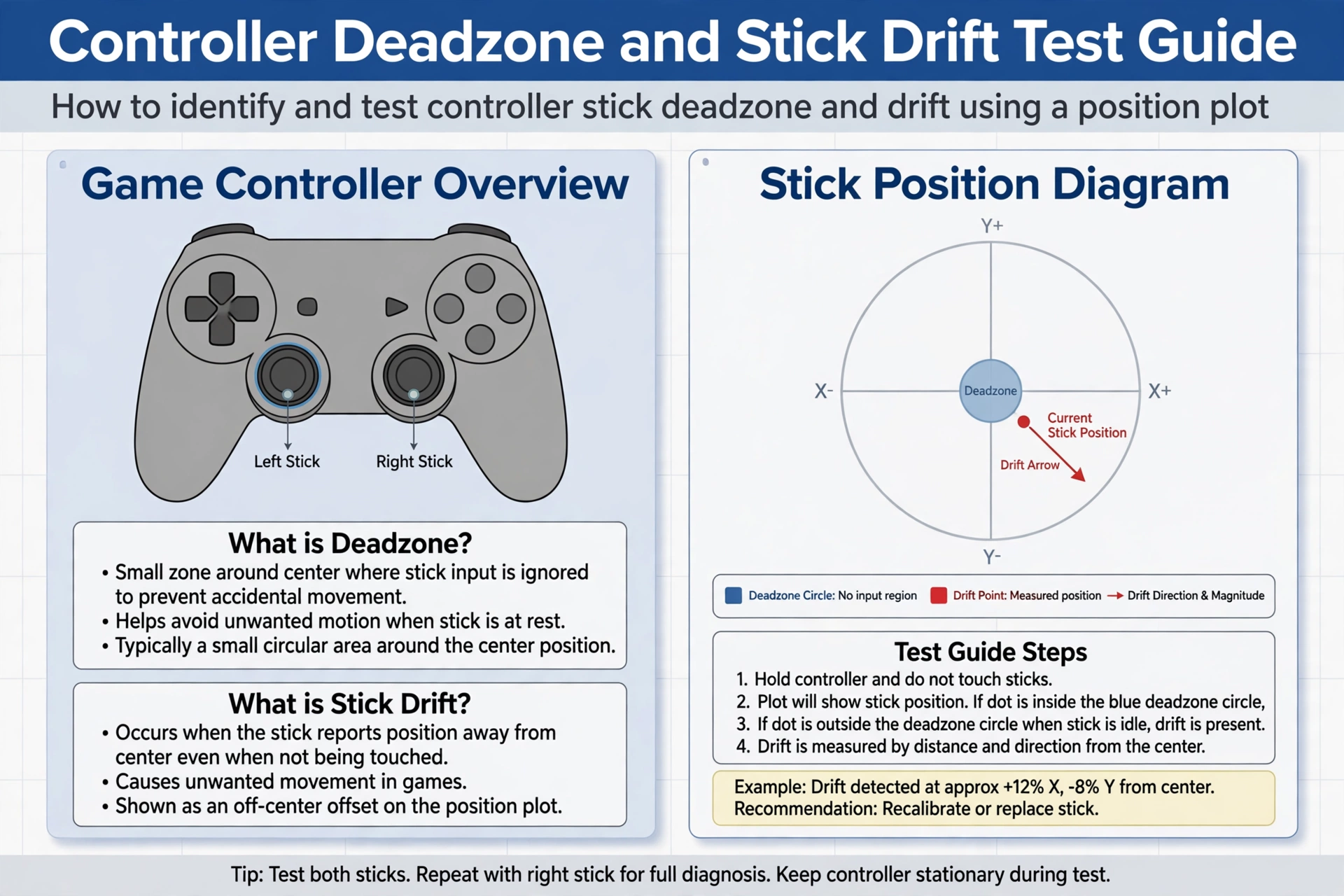
If your character walks on its own or your camera creeps while your hands are off the sticks, your controller may have drift. A quick stick drift test takes only a few minutes and tells you whether the problem is software, settings, or worn hardware.
This guide is independent and unofficial. It covers how to run a controller deadzone tester, read the results, and decide what to fix first.
Quick Answers
| Question | Short answer |
|---|---|
| What is stick drift? | The game reads stick movement when you are not touching the stick. |
| What is a deadzone? | A small area around the stick centre where tiny inputs are ignored. |
| Can a test fix drift? | No. A test only shows you what the stick reports. Fixes come afterwards. |
| Where do I run the test? | Use the gamepad tester hub in your browser. |
What stick drift looks like and how a stick drift test shows it
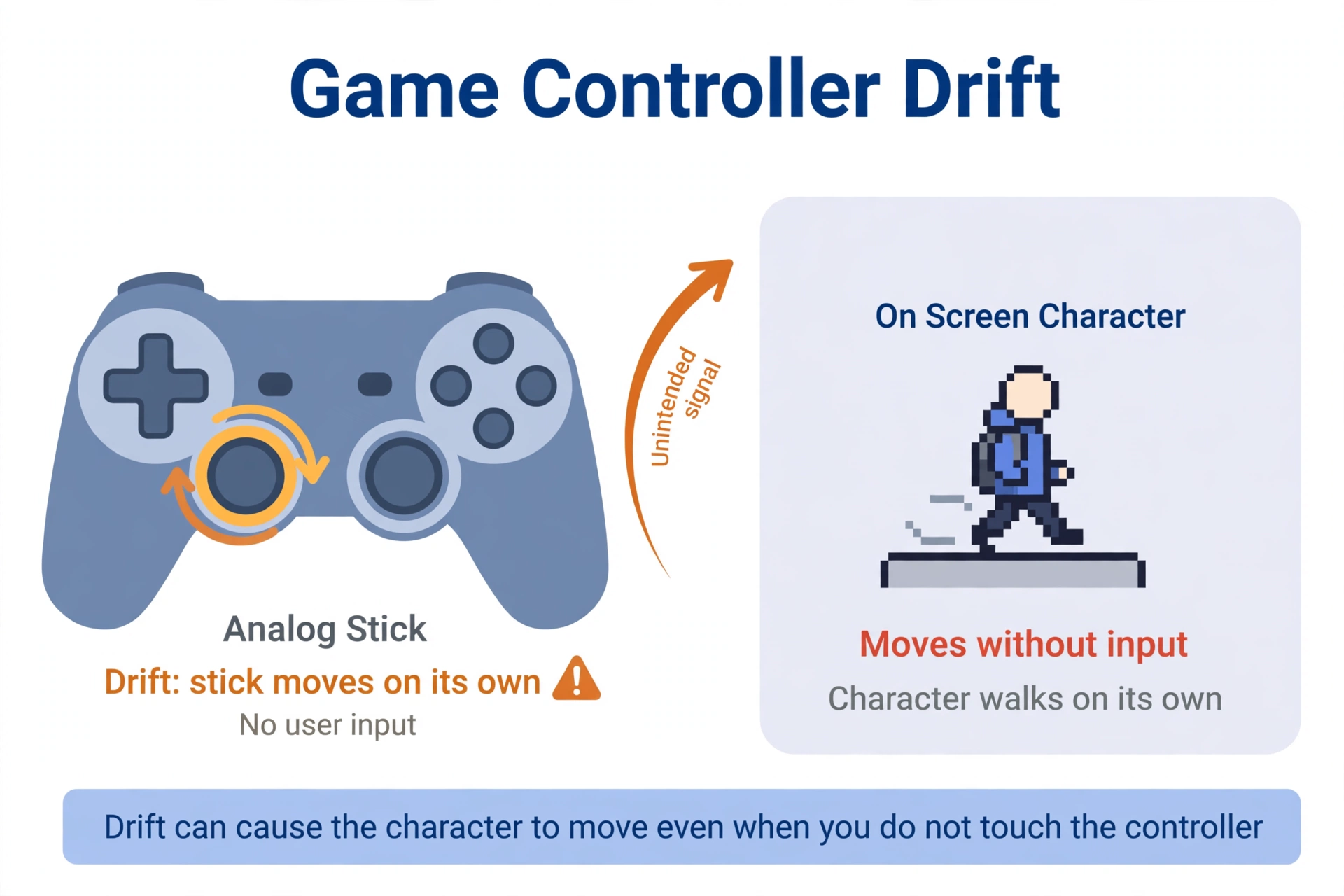
Stick drift means the controller reports input that you did not make.
Here is how it shows up in practice: • Your character walks slowly in one direction with the stick untouched. • The camera turns or tilts by itself. • Menus scroll up, down, or sideways without a button press. • Your aim slides off target while you hold still.
Drift is often subtle at first. You may only notice it when you stand still in a game and the view slowly moves.
A good stick drift test removes the guessing. Instead of relying on how a game feels, you watch the raw numbers the stick sends.
What a deadzone does and how a controller deadzone tester reads it
A deadzone is a small neutral area around the centre of the stick. Movements inside that area are ignored.
It exists because no stick rests at a perfect zero. Springs, plastic wear, and manufacturing tolerance all leave the stick a tiny bit off-centre. Without a deadzone, every game would react to that noise.
A bigger deadzone can hide drift. If the stick wanders only a little, a wider ignored area swallows it.
The trade-off is fine control. A larger deadzone means you must push the stick further before anything happens, so slow, precise movements feel less responsive.
There is no single deadzone setting that suits every controller or every game. The right value depends on how much your stick wanders and how much precision you need.
How to test your controller step by step
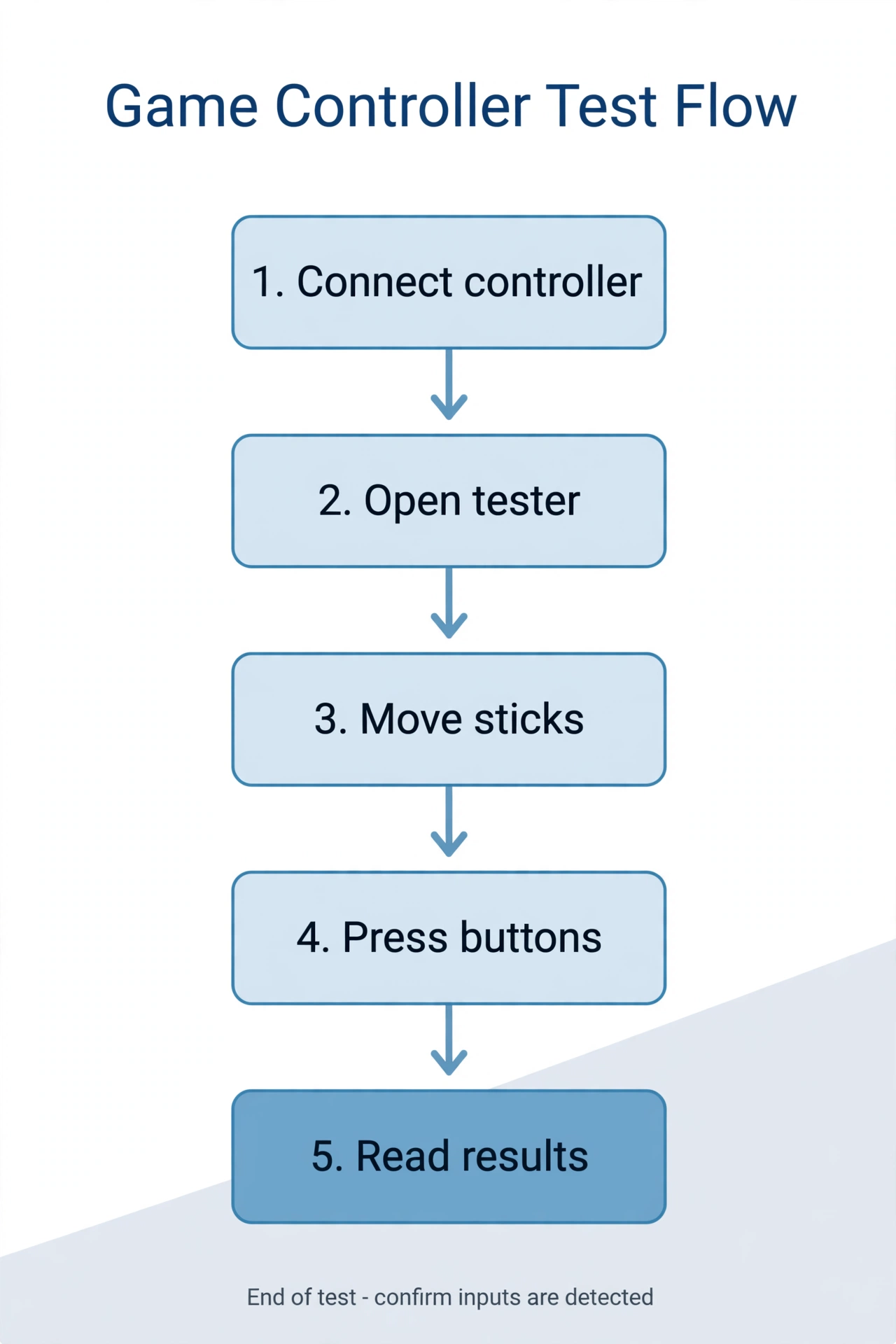
Use a controller deadzone tester that shows live stick position. The gamepad tester on this site is built for this.
- Connect the controller. Use a cable or Bluetooth. If you want a clean baseline, wired is simpler.
- Open the gamepad tester. Load it in your browser and press any button so the page detects the controller.
- Leave the sticks alone first. Watch the position readout for a few seconds. A healthy stick sits at or very near centre.
- Move each stick slowly in a full circle. Go around the edge in all directions. Slow movement makes skips and dead spots easier to see.
- Release the stick and let it spring back. Check whether it returns to centre every time or stops off to one side.
- Repeat for the second stick. Treat each stick as its own test.
- Test buttons and triggers briefly. Press each one and confirm it registers. This helps you separate a stick problem from a wider controller fault.
Take a screenshot or note what you see. It helps when you compare results after each fix.
If you use a controller drift tester on a different device later, keep the same steps so the results are comparable.
Reading your results
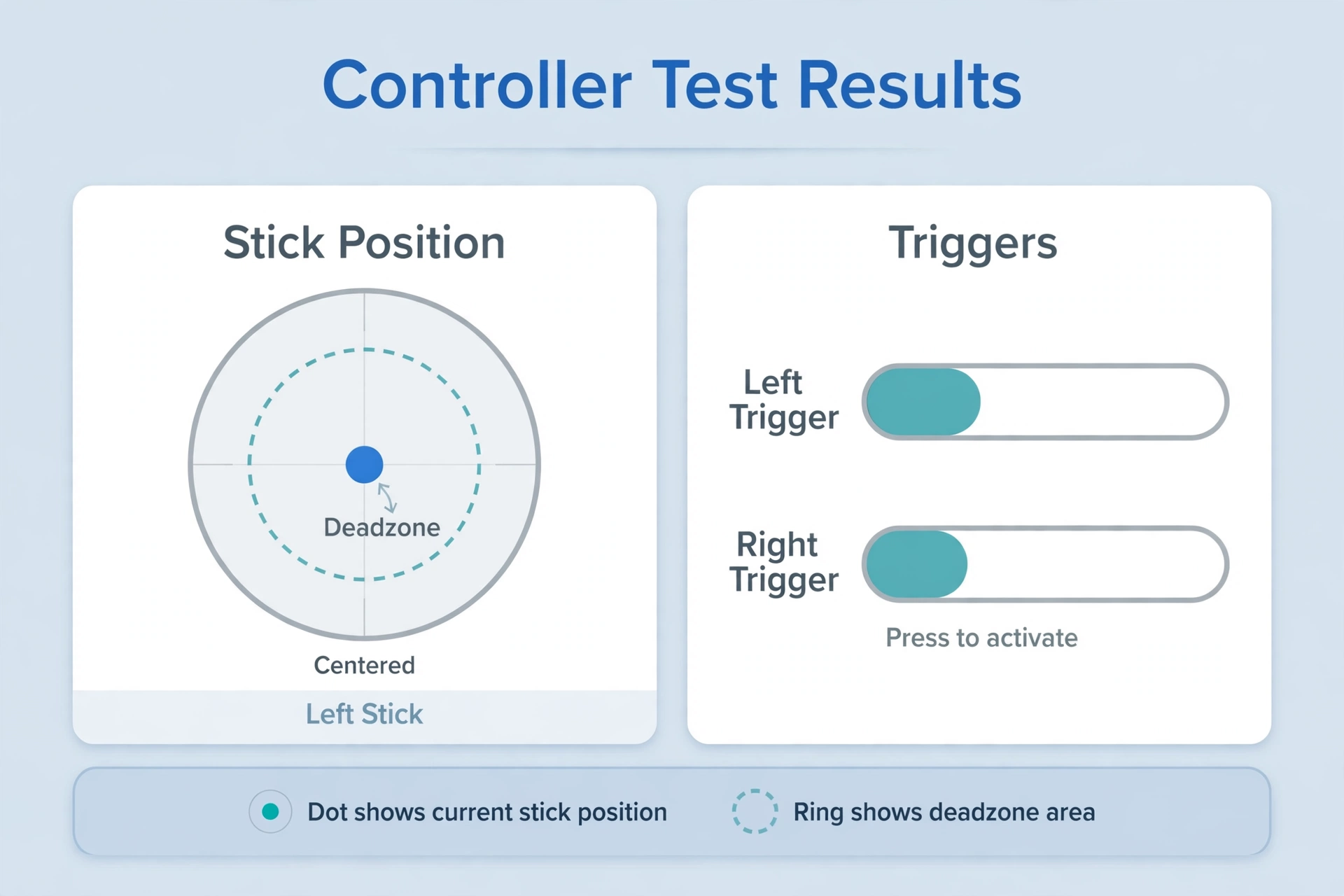
Use this table to turn what you see into a next step.
| What you see | What it suggests | What to do |
|---|---|---|
| Stick sits at centre at rest | No drift at the moment | Nothing to fix. Retest if problems appear in a game. |
| Stick rests off-centre | Calibration offset or early wear | Clean around the stick, then recalibrate. |
| Stick jumps or skips | Dirt, worn contacts, or a connection issue | Clean first. If it persists, suspect hardware. |
| One direction weaker than the others | Uneven wear or a worn part in that direction | Recalibrate, then test on another device. |
| Buttons fine but stick drifts | The fault is limited to the stick | Work through the fixes below, in order. |
A single odd reading is not a verdict. Run the test two or three times before you decide anything.
Fixes to try before you replace anything
Work from the cheapest fix to the most involved. Retest with your stick drift test after each step.
- Clean around the stick. Dust and grime can sit under the stick cap and push it off-centre. Turn the controller off, then gently clean the gap around the base. Do not force liquid into the controller.
- Recalibrate through your device settings. Windows, consoles, and phones usually have a controller calibration option. Recalibrating tells the system where the true centre is.
- Adjust the deadzone in the game or app. Many games and apps have a deadzone slider. Raise it a little until the drift stops, and no further. Not every game offers this setting.
- Update the controller firmware through the maker’s official route. Use the manufacturer’s own app or support page. Avoid unofficial firmware files.
- Test on another device. Connect the same controller to a different phone, PC, or console. If drift follows the controller, the controller is the cause. If it disappears, the first device’s settings or drivers are the problem.
If you are checking this because of Roblox or an executor setup, remember that a controller test is separate from tool status. You can check the status page for the site’s current notes on that topic.
When it is really hardware
Some drift cannot be fixed with settings.
Suspect hardware when: • Drift survives cleaning, recalibration, and a test on a second device. • The drift gets worse over days or weeks. • You can see or feel physical damage, such as a loose cap, a cracked housing, or a stick that wobbles. • The stick no longer springs back to centre.
In that case, replacing the stick module or the whole controller is the honest answer. A bigger deadzone only hides the fault, and it costs you precision.
Check your warranty or the maker’s repair options first. Repair choices vary by brand and region, so confirm with the manufacturer.
FAQ
Does a deadzone fix stick drift?
Is stick drift permanent?
Can I test a Bluetooth controller online?
Why does only one stick drift?
Does drift affect Roblox?
Should I open my controller?
Related Guides
Related guides
Gamepad tester hub: run a live stick drift test and check buttons and triggers.
Delta Executor status page: see the site’s current notes on tool status.
Using a controller with Roblox on mobile or PC: a general guide to pairing a gamepad, checking that it is recognised, and adjusting basic input settings.
This site is an independent guide and is not affiliated with Roblox or any controller manufacturer. Test results depend on your hardware, browser, and device.
Related: if the tester shows no controller at all, see the Gamepad Not Detected Fix Guide.