

How to Test a PS5 Controller Online
If your DualSense feels off, a ps5 controller test is the quickest way to find out whether the problem is the hardware, the connection, or the game. A browser-based tester shows you in real time which buttons register, how far your sticks and triggers travel, and whether the controller is sending clean input at all. This guide explains how to test a PS5 controller online using nothing more than a computer, a browser, and a cable or Bluetooth. You will learn how to connect the pad, check every input, spot stick drift, test vibration, and fix the most common problems along the way.

Quick Answers
If you want the short version of how to test a PS5 controller, here it is:
- What you need: A DualSense controller, a computer with a modern browser, and either a USB-C data cable or Bluetooth.
- Fastest method: Plug the controller in with USB-C, open a ps5 controller test online page, press any button so the page wakes up, then check each input in turn.
- What a web tester can check well: Face buttons, shoulder buttons, D-pad, stick movement, analog trigger travel, and often basic rumble.
- What a web tester may not show: Adaptive trigger resistance, detailed touchpad finger tracking, and battery level. Browsers often do not expose these, so treat them as hands-on checks.
- First fix for most problems: Try a different cable and a different USB port, then restart the browser and reconnect the controller.
- Stick drift clue: If a stick shows movement while you are not touching it, you may have drift.
Connecting a DualSense Controller by USB-C and Bluetooth
Before any dualsense controller test can work, your computer has to see the controller. You have two options, and it is worth knowing both because a problem that appears on one connection sometimes disappears on the other.

Connecting by USB-C
USB is the simplest route and usually the most reliable for testing.
- Use a USB-C cable that supports data transfer. Some cheap cables only carry power, and a controller on one of those will charge but never appear in the browser.
- Plug the cable into the controller and then into a USB port on your computer. A port directly on the machine is better than a hub.
- Wait a few seconds for the operating system to recognize the device.
- Open your chosen tester in a browser and press a button on the controller. Browsers generally hide gamepads until they receive input, so a blank page does not always mean a failed connection.
Connecting by Bluetooth
Bluetooth is handy if you want to test the controller the way you will actually play, without a cable.
- Put the controller into pairing mode. With the controller off, hold the PS button and the Create button together until the light bar starts flashing rapidly.
- On your computer, open the Bluetooth settings and choose to add a device.
- Select the controller from the list. It usually appears as a wireless controller.
- Once paired, the light bar should settle to a steady color. Open the tester and press a button to confirm it is detected.
If you plan to compare both connection types during your ps5 controller test, run the full check once over USB and once over Bluetooth. Differences between the two can point you to the cause of an issue.
PS5 Controller Test: Every Button
If you have ever wondered how to test ps5 controller buttons properly, the answer is to go through them slowly and deliberately rather than mashing everything at once. Most online testers draw a controller on screen and light up each input as you press it. Some also list button numbers or a log of events.
Work through the controls in groups:
- Face buttons: Cross, Circle, Square, and Triangle. Press each one individually and watch for a matching highlight.
- D-pad: Press up, down, left, and right separately. Then try diagonals, which should register two directions at once.
- Shoulder buttons: Press L1 and R1.
- Stick clicks: Press down on each stick for L3 and R3. These are easy to forget and are common failure points because they take a lot of wear.
- Options and Create buttons: These sit on either side of the touchpad.
- PS button and mute button: Your operating system may intercept the PS button, so it may not show up in the browser. That does not necessarily mean it is broken. The same can apply to the mic mute button.
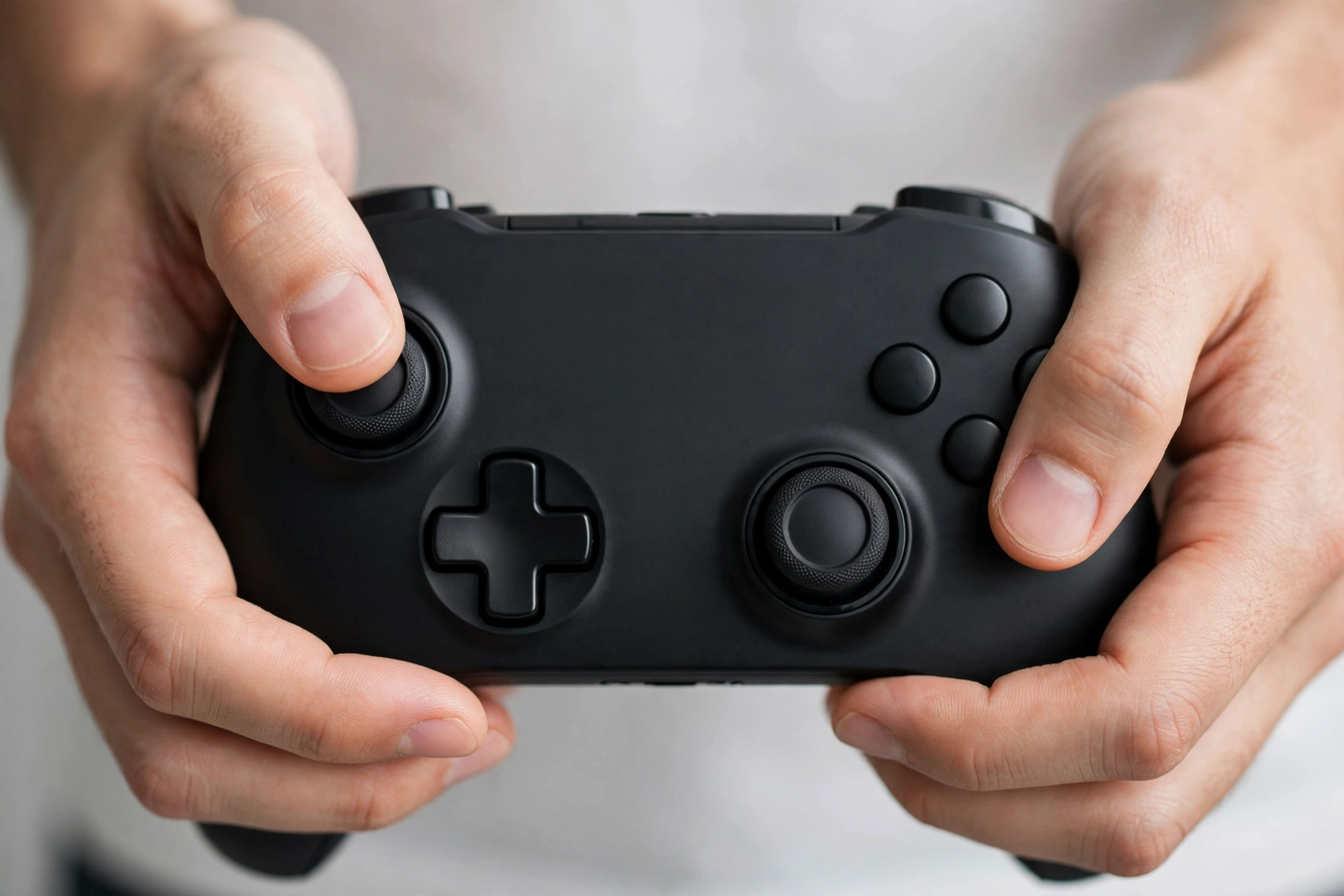
Pay attention to the quality of each press, not just whether it registers. A button that sometimes fails to light up, flickers on and off, or stays highlighted after you release it deserves a second look. Press each one several times at different speeds. Intermittent faults often hide behind a single successful press.
PS5 Controller Test: Both Sticks
The sticks are analog inputs, so they report a range of values rather than simply on or off. A good ps5 controller test online page will show each stick as a dot moving inside a box or circle, and may also display numeric axis values.
Try these checks:
- Full range: Push each stick slowly to every edge. The dot should travel smoothly and reach the outer boundary in all directions.
- Circular sweep: Rotate each stick around the rim. A healthy stick traces a roughly round path. If the path looks flat in places or jumps, the stick may be worn or dirty.
- Return to center: Let go and watch the dot. It should settle back to the middle quickly and stay there.
- Smoothness: Make small, slow movements near the center. The dot should follow your thumb without sudden jumps or sticking.
Test each stick separately and compare them. If one behaves very differently from the other, that is useful information, even if both are technically working.
How to Test the Adaptive Triggers
The adaptive triggers are one of the signature features of the DualSense, and they are also one of the hardest to check online. Here is the honest picture. A browser tester can usually read how far you pull L2 and R2, because that is ordinary analog input. What it typically cannot do is make the triggers push back with the variable resistance that supported games produce. That behavior depends on software the game or console provides.
That leaves you with two kinds of checks.
What you can do in a browser:
- Pull each trigger slowly from fully released to fully pressed. The on-screen bar or value should rise smoothly with no sudden jumps.
- Release each trigger slowly and confirm the value falls back to zero cleanly.
- Pull both triggers together and make sure neither one interferes with the other.
What you can do by hand:
- Feel for an even, consistent pull. A trigger that grinds, sticks, or feels gritty in part of its travel may have a mechanical issue.
- Check that each trigger springs back fully on its own.
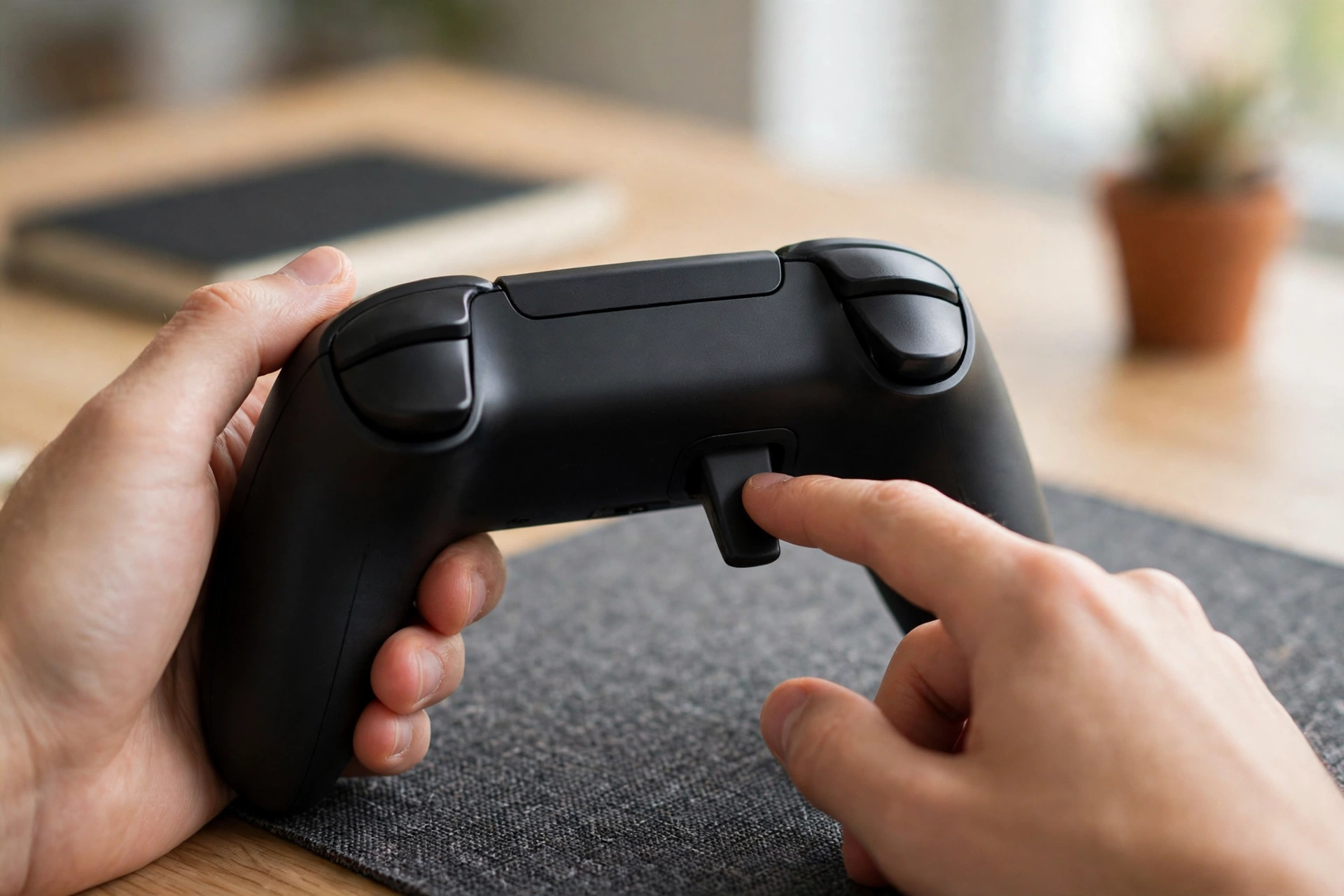
If you want to confirm the adaptive resistance itself, the most dependable approach is to try a game or app that is known to use it, on the platform where it is supported. A browser page that shows only trigger travel cannot tell you whether the resistance motors are working.
How to Test the Touchpad
The touchpad on a DualSense does two jobs. It acts as a clickable button, and it tracks one or two fingers. Online testers handle these differently.
- Click test: Press down on the touchpad. Many testers register this as a button press, and you should see it light up. Try pressing the left side, the middle, and the right side, since a worn click mechanism can fail in one area.
- Surface check: Run a finger across the whole surface and look for dead spots by feel. Finger position data is often not exposed to browsers, so you may see no on-screen response even when the touchpad is healthy.
If your tester does not show touch position, do not assume the touchpad is broken. Use a game, a system menu, or an app that responds to touchpad swipes if you need to confirm finger tracking. Keep the pad clean and dry while testing, because moisture or dirt can cause erratic touches that look like a fault.
How to Test Vibration and Rumble
Vibration is the other feature that depends heavily on browser support. Some browsers can send basic rumble commands to a connected gamepad, and certain testers include a vibration button for exactly this purpose. Others cannot, so a missing vibration option does not by itself mean the motors have failed.
If your tester supports it:
- Find the vibration or rumble control on the page.
- Trigger it and hold the controller loosely in your hands so you can feel it.
- Notice whether both sides vibrate. The DualSense has motors on the left and right, and they may feel different from each other.
- Try a short pulse and a longer one. A healthy controller should respond promptly and stop when told to.
Connect by USB for this test if you can, since a wired connection tends to be the easiest to get working. If rumble does nothing in the browser, try a different browser or a different tester before drawing conclusions. Remember too that the haptic feedback in the DualSense is more detailed than a simple buzz, and a basic web page will not reproduce all of it.
Checking Stick Drift and Battery
Stick Drift
Stick drift happens when a stick reports movement even though you are not touching it. In a game this shows up as a camera that slowly turns or a character that creeps on its own. Your online tester is a good place to catch it.
- Place the controller on a flat surface, or hold it and keep your thumbs completely off the sticks.
- Look at the stick indicators and the numeric values, if shown. At rest they should sit at or very close to the center.
- Watch for a few seconds. If a dot sits clearly off center or wanders, note which stick and which direction.
- Nudge each stick and release it, then check again. Some drift only appears after the stick has been moved.
A tiny amount of movement near center is common, and games usually apply a deadzone to ignore it. Drift becomes a problem when the offset is large enough to affect play. If you suspect drift, repeat the test a few times, and clean around the stick base gently, since debris can cause a stick to rest slightly off center.
Battery
Most browser testers cannot read the battery level of a DualSense. The reliable ways to check are the on-screen indicators your console or operating system provides, or by watching the light bar and charging behavior. If the controller drains unusually fast or shuts off while connected wirelessly, plug it in by USB and see whether it behaves normally. If it works fine on a cable but not wirelessly, the battery or wireless connection is a likelier cause than the buttons or sticks.
Troubleshooting
Controller Not Detected
When a dualsense controller test page shows nothing, work through these steps in order:
- Press a button. Browsers often keep gamepads hidden until they receive input.
- Swap the cable. Use a cable known to carry data, not just power.
- Change the port. Plug directly into your computer instead of a hub.
- Reload the page. Refresh the tester after the controller is connected.
- Try another browser. Gamepad support varies, so a different browser may behave differently.
- Close other apps. Game launchers and controller utilities can sometimes grab the controller and stop other programs from seeing it.
- Restart. Disconnect the controller, close the browser, reconnect, and try again.
Bluetooth Pairing Fails
If the controller will not pair or keeps disconnecting:
- Make sure it is in pairing mode, with the light bar flashing quickly, before you search from your computer.
- Remove any old entry for the controller in your Bluetooth settings, then pair again from scratch.
- Turn Bluetooth off and on again on your computer.
- Move closer to your computer and away from other wireless devices that may cause interference.
- Charge the controller first, because a very low battery can cause unstable connections.
- If pairing keeps failing, connect by USB-C to confirm the controller itself works.
Input Lag
If inputs seem delayed during your ps5 controller test, try these fixes:
- Switch to USB. Wired connections often feel more responsive than Bluetooth.
- Reduce interference. Keep the controller close to the computer and away from busy wireless gear.
- Close heavy programs. A browser with many tabs, or a computer under load, can add delay to what you see on screen.
- Check your display. A slow screen or a tester page that updates sluggishly can look like controller lag even when the controller is fine.
- Compare testers. If lag appears on one page but not another, the page is the likely cause.
Frequently Asked Questions
How do I test a PS5 controller online?
Connect your DualSense by USB-C or Bluetooth, open a ps5 controller test online page in your browser, and press any button so the page detects the controller. Then work through the buttons, sticks, and triggers one at a time, watching the on-screen display for each response.
Do I need to install anything to run a ps5 controller test?
Browser-based testers generally run inside the page and do not require a separate installation, though you do need a browser that supports gamepad input. Your computer also needs to recognize the controller, which usually happens automatically once it is connected.
Why does the online tester not show my controller?
The most common reasons are a charge-only cable, a browser that has not received any input yet, or another program holding the controller. Press a button, try a different cable or port, reload the page, and close other apps that might be using the controller.
Can an online tester check adaptive triggers and haptic feedback?
Only partly. A tester can usually show how far each trigger is pressed, and some can send basic rumble. The variable trigger resistance and the finer haptics depend on software support that a simple web page may not provide, so check those in a game or app built to use them.
How can I tell if my controller has stick drift?
Keep your thumbs off the sticks and watch the tester. If the stick indicator sits well off center or keeps moving on its own, the stick may be drifting. Repeat the check a few times and after moving each stick, since drift can appear only in certain positions.
Is it better to test over USB or Bluetooth?
USB is usually the easier place to start because it is simple to set up and tends to be more stable. If everything works by cable but problems appear over Bluetooth, the issue is probably with the wireless connection or pairing rather than the buttons and sticks themselves. Running the dualsense controller test both ways helps you narrow it down.
Related Guides
Test your controller with the Gamepad Tester, including the vibration test guide. For other controllers, see How to Test an Xbox Controller Online. If your controller is not detected at all, see the Gamepad Not Detected Fix Guide.