

How to Test an Xbox Controller Online (Buttons, Sticks, Triggers)
An Xbox controller test online only shows what the browser receives from the controller. It tells you whether an input arrives, not why a problem happens. If an input does not show up, that is useful evidence to carry into your next troubleshooting step.
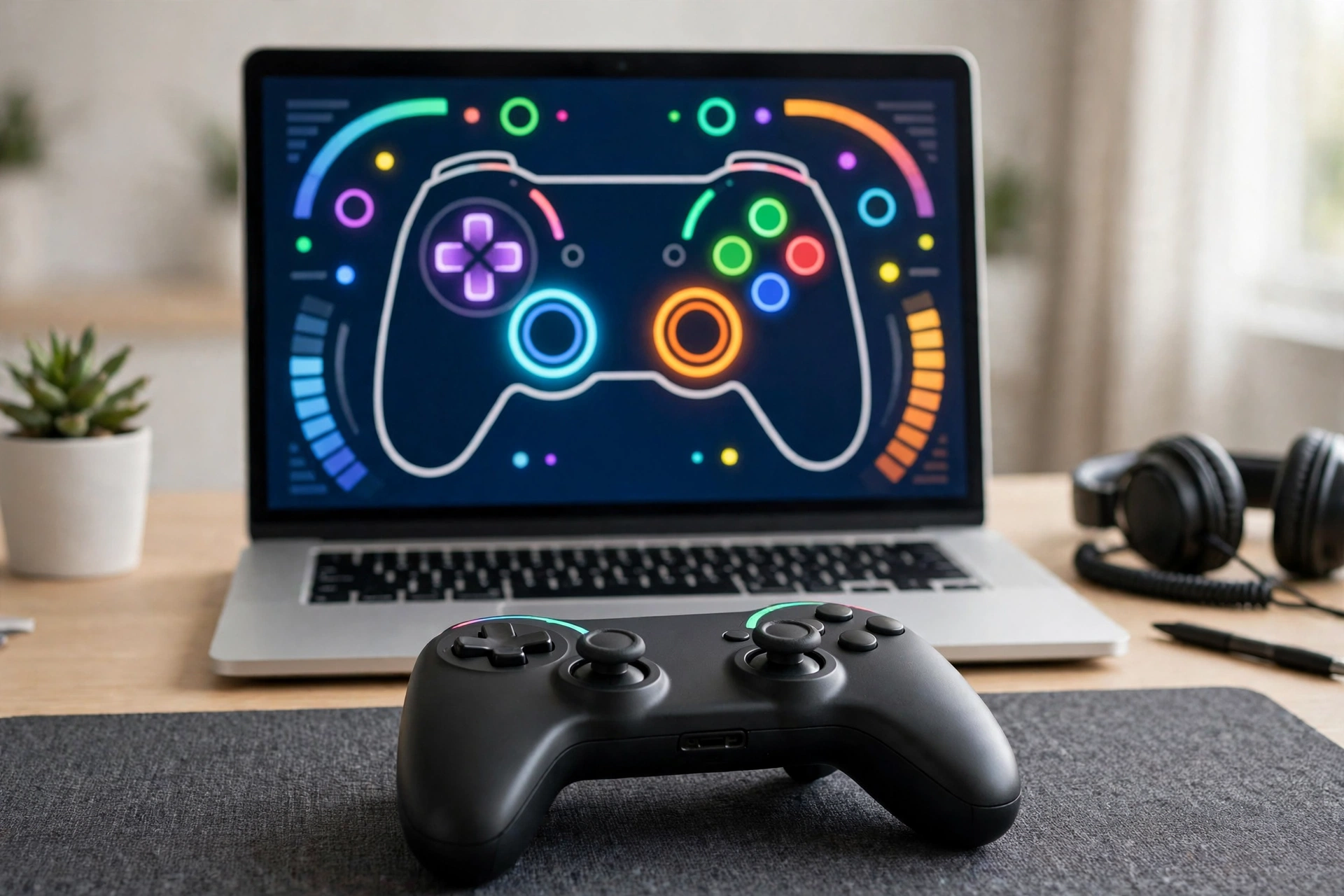
Quick Answers
If you want the short version of how to test Xbox controller inputs, here it is:
- Connect the controller to your computer by USB cable or Bluetooth.
- Open a browser gamepad tester such as the Gamepad Tester.
- Press a button on the controller so the page wakes up and detects it. Browsers usually do not report a gamepad until it sends its first input.
- Press every button one by one and watch for the matching light or highlight on screen.
- Move both sticks slowly and read the X and Y values.
- Squeeze each trigger gradually and watch the depth reading.
- Trigger vibration if the tester offers a rumble button.
Xbox Controller Test Online: Connecting via USB and Bluetooth
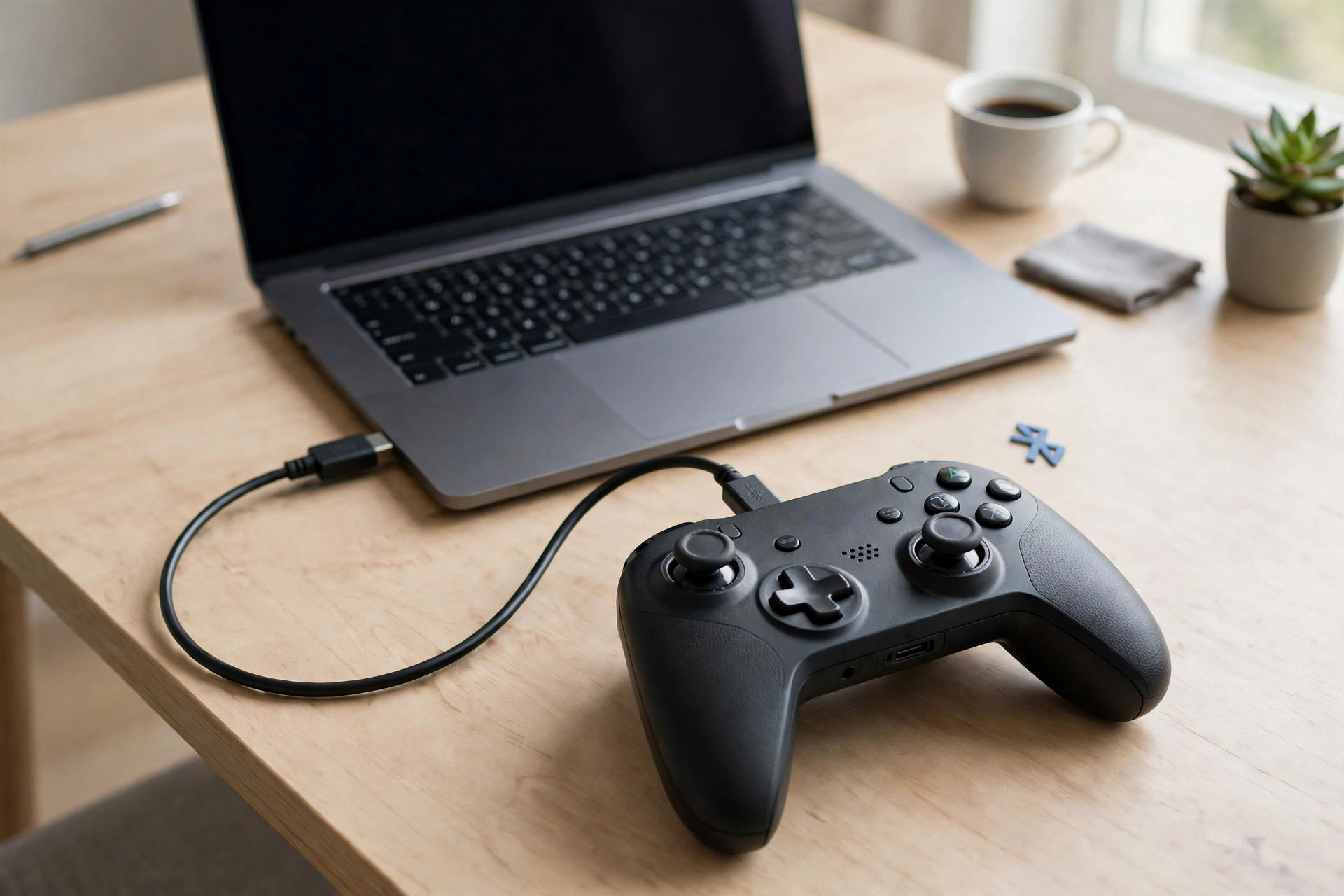
A browser tester works with an Xbox Series controller or an Xbox One controller. The connection method changes how you set things up, but the testing steps stay the same.
USB connection. Plug a data-capable USB cable into the controller and then into the computer. Some cables only carry power, so if nothing is detected, try a different cable before drawing conclusions about the controller. Once connected, open the tester page and press any button. If the page still says no gamepad was found, the Gamepad Not Detected guide walks through the usual causes.
Bluetooth connection. Hold the pairing button on top of the controller until the Xbox button starts flashing quickly. Then open your computer’s Bluetooth settings, add a new device, and choose the controller from the list. After it pairs, return to the browser tab and press a button. For a deeper walkthrough of this path, see the Bluetooth controller test guide.
A few practical notes before you start:
- Close other apps that may be using the controller, since some programs can hold on to it.
- Reload the tester page after connecting if the controller does not appear.
- Press a button, rather than only moving a stick, to trigger detection.
- If you plan to use the controller for a game on PC, the Roblox controller not working on PC guide covers how that case differs from a plain browser test.
Once the tester shows the controller’s name or an index number, you are ready to test.
How to Test Xbox Controller Buttons: The Xbox Controller Button Test
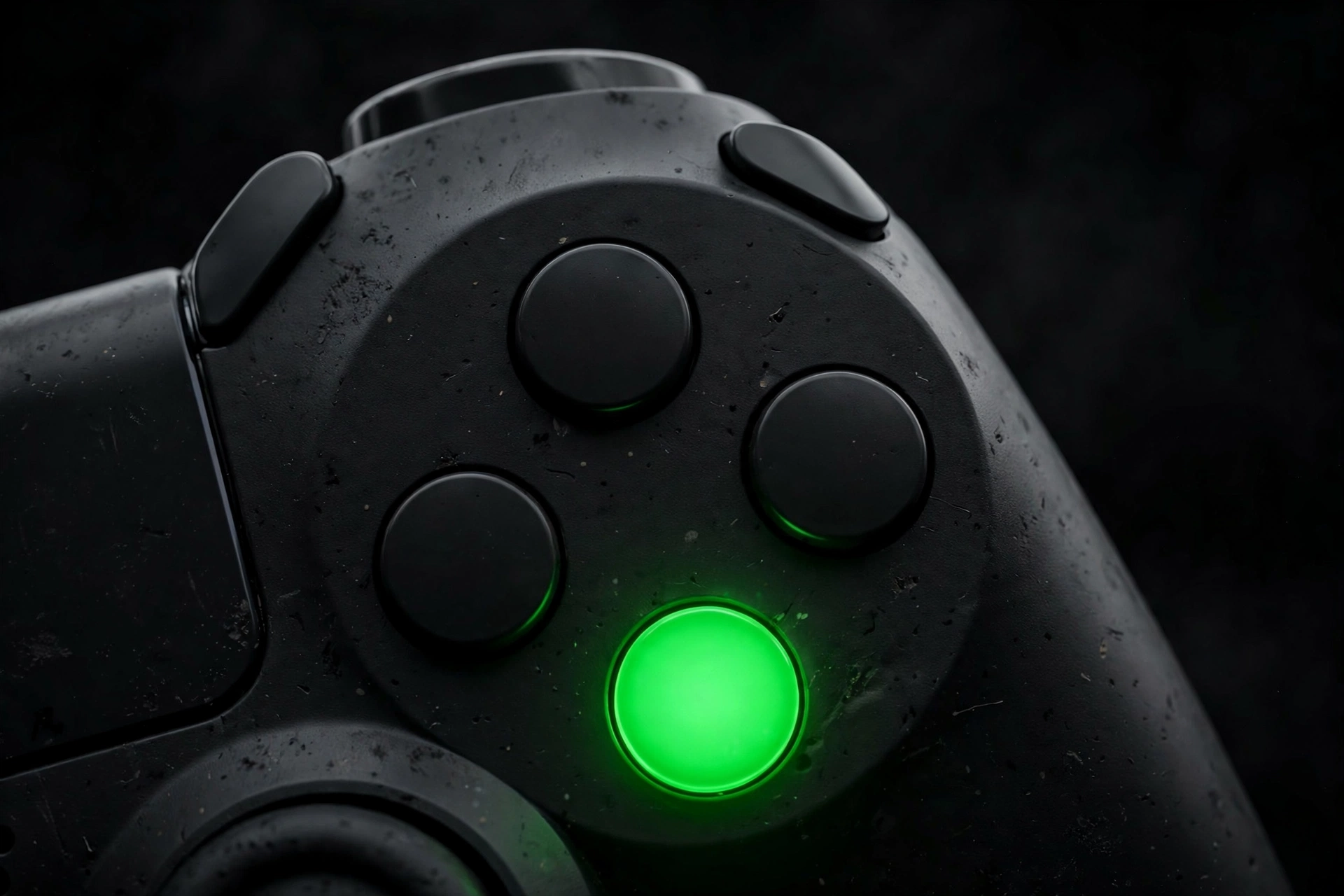
The goal of an Xbox controller button test is simple: every physical press should produce a visible response on screen. Most browser testers draw a controller diagram or a grid of numbered boxes, and each one lights up while the matching button is held.
Work through the controller in a fixed order so you do not skip anything:
- Face buttons: A, B, X, Y. Press each one firmly, then lightly. A healthy button lights up as soon as you press it and goes dark when you release it.
- Bumpers: LB and RB. These are digital buttons on the top edge, so each should light up like a face button.
- D-pad: up, down, left, right. Press each direction separately. Then try diagonals to see whether two directions can register at once.
- View and Menu buttons. These are the two small buttons near the center.
- Stick clicks: L3 and R3. Press down on each stick without tilting it. Many testers show these as separate buttons.
- Xbox button and Share button. Browsers may not receive these at all, because the operating system often handles them first. If they do not light up, that alone does not tell you the button is broken.
What to watch for during the test:
- A button that never lights up. The browser is not receiving a press from it.
- A button that stays lit after release. The input may be stuck on.
- A button that flickers on and off during one steady press. The signal may be unstable.
- A press that needs extra force to register. Compare it to a neighboring button.
Repeat the Xbox controller button test a couple of times, and try pressing buttons quickly in sequence. Problems that do not show on a single slow press sometimes appear when you tap rapidly. Write down which buttons misbehaved, because that list helps later if you try cleaning, a different cable, or a repair.
Reading Stick Values and Spotting Drift
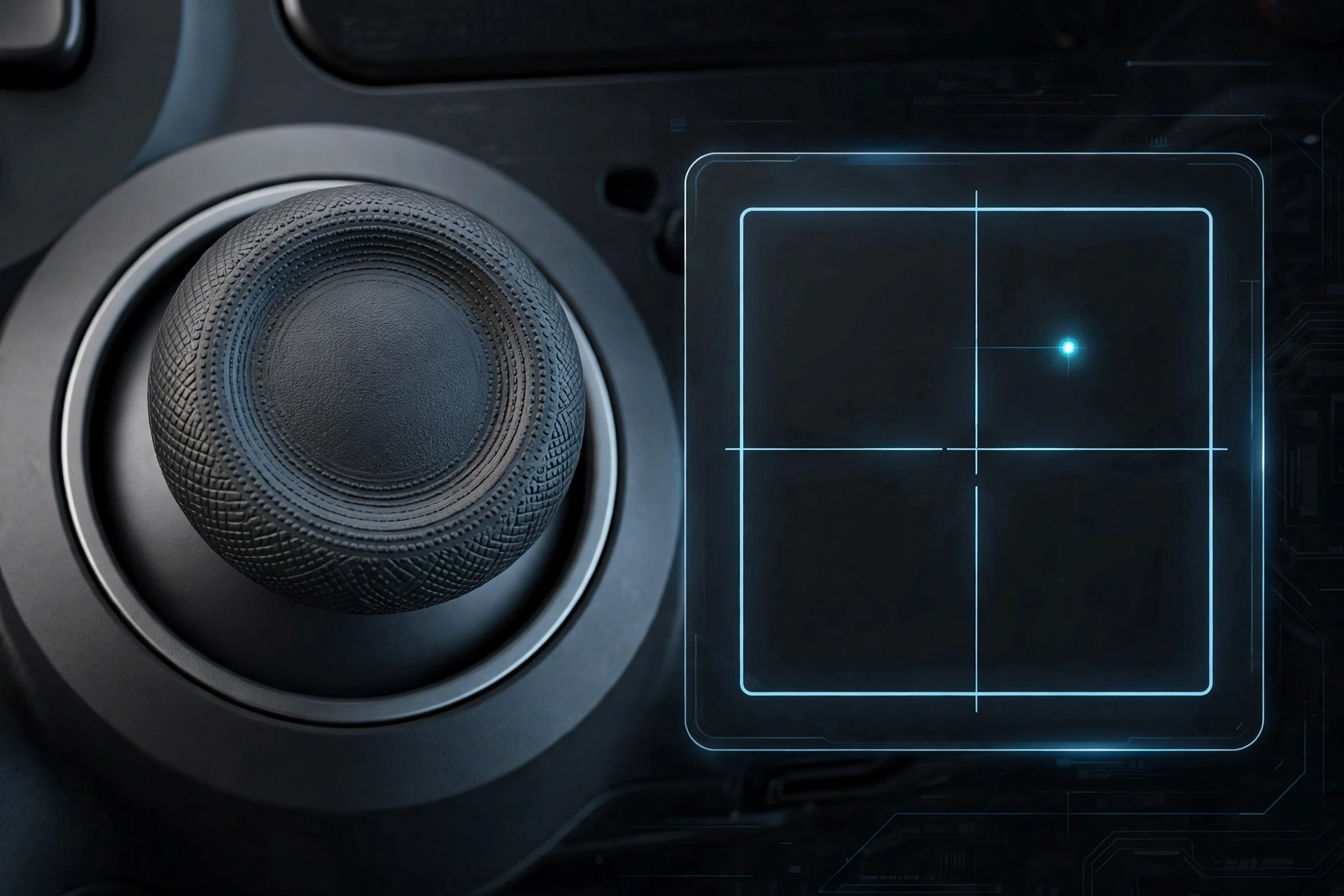
Each stick reports two numbers, one for the horizontal axis (X) and one for the vertical axis (Y). Gamepad testers commonly display these as values between -1 and 1, where 0 means the stick is centered. Some testers also draw a dot that moves inside a box so you can see the position at a glance.
Check the resting position. Let go of the stick completely and look at the numbers. A stick at rest should read close to 0 on both axes. Small readings very near zero can appear on many controllers, and games often ignore a small zone around the center. Larger readings that persist while you are not touching the stick are what people usually call stick drift.
Check the full range. Push the stick slowly toward each edge. You want to see the values move smoothly toward -1 and 1 without sudden jumps. Then rotate the stick around the outer edge, tracing a circle. The dot on screen should follow a rounded path. Flat spots, jumps, or sticky areas are worth noting.
Check the return to center. Push the stick out and release it. Watch whether the values settle back near 0 or hang at a nonzero number.
Here is how to read what you see:
- Values at zero when idle, smooth movement everywhere. Nothing unusual is showing on that stick.
- Nonzero values when idle. The stick is reporting movement you are not making. Note the numbers on both axes.
- Values that jitter while the stick is untouched. The reading is unstable.
- One axis behaves differently from the other. Move each axis alone to isolate it.
Idle readings matter because many games apply a deadzone, which is a small area around the center where input is ignored. Whether a given idle value causes trouble depends on the game’s settings. For a closer look at idle values and how deadzone settings relate to them, read the deadzone and stick drift guide. A tester only shows readings, so it cannot repair a drifting stick.
Testing Triggers
Unlike bumpers, the left and right triggers are analog. They report how far they are pressed, not just on or off. In a browser tester you will typically see a bar or number that grows as you pull the trigger, often shown between 0 (released) and 1 (fully pressed).
To test each trigger:
- Release it completely and confirm the reading sits at 0.
- Pull it slowly and watch the value rise in a steady way.
- Hold it halfway and see whether the reading stays put.
- Pull it all the way down and check that the value reaches its maximum.
- Release it slowly and confirm the reading drops back to 0.
Things worth noting: a reading that does not return to 0, a bar that jumps in steps instead of rising smoothly, or a trigger that never reaches its maximum. Compare the left trigger to the right one, since seeing both side by side makes differences easier to spot. Some testers show trigger depth as a button too, so you may see a light as well as a number.
Testing Vibration
Many browser testers include a rumble or vibration button. Pressing it sends a vibration request to the controller, and you can feel whether the controller responds.
Hold the controller in both hands, press the rumble option, and pay attention to what you feel. A Series or One controller has motors in the handles, and on some models also in the triggers, but browser support for each motor varies. If the tester only triggers a general rumble, you may feel the handles and not the triggers. Whether trigger rumble is available depends on the browser and the connection.
If you feel nothing, that does not automatically mean the motors are faulty. Browser vibration support differs, and some connection types do not pass rumble through. Try the other connection method, such as USB if you started with Bluetooth, and test again before deciding anything.
What to Do When a Button or Stick Fails
If your Xbox controller test online shows a problem, follow a sequence from simplest to most involved:
- Repeat the test. Reload the page, reconnect the controller, and press the button again. One-off glitches sometimes disappear.
- Switch the connection. Test with USB if you used Bluetooth, or the reverse. If the problem appears in only one mode, the cause may be related to the connection and not the buttons.
- Try another cable or port. This helps rule out a cable that does not carry data properly.
- Try another browser or another computer. If the controller behaves normally elsewhere, the issue may be on the first setup.
- Remove obstructions. Dust or debris around a button can interfere with presses. Handle the controller gently and follow the manufacturer’s care guidance.
- Check game or system settings. Deadzone and button mapping options can change how inputs feel in a game.
- Contact support or consider repair. If the same input fails in every test, the evidence you collected, such as which button, which axis, and which values, gives support staff something concrete to work with.
If the browser does not detect the controller at all, start with the Gamepad Not Detected guide. A tester cannot repair hardware, and a normal test result does not guarantee that a controller will behave well in every game.
Wired vs Wireless Testing
| Aspect | Wired (USB) | Wireless (Bluetooth) |
|---|---|---|
| Setup | Plug in a data-capable cable | Pair through system Bluetooth settings |
| Detection | Appears after you press a button | Appears after pairing and a button press |
| Button lights | Shown on the tester | Shown on the tester |
| Stick X/Y values | Shown on the tester | Shown on the tester |
| Trigger depth | Shown on the tester | Shown on the tester |
| Rumble | Test with the tester’s vibration option | Test with the same option; response may differ |
| Common problems | Charge-only cable, wrong port | Failed pairing, dropped connection |
| Best use | A baseline test with fewer variables | Checking how the controller behaves as you would play |
A good habit is to test both ways. If both connections show the same problem, the controller itself is the likely focus. If only one shows it, look at that connection first.
Frequently Asked Questions
What is the easiest way to test an Xbox controller online?
Connect the controller by USB or Bluetooth, open a gamepad tester in your browser, and press a button to wake it. The tester then displays button lights, stick values, and trigger depth. The tool at Gamepad Tester is one example.
Why does the tester not show my controller?
Browsers usually wait for a first input before listing a gamepad, so press a button. If that does not help, reload the page, try another cable or port, or follow the steps in the gamepad not detected guide.
Does an Xbox controller button test cover the Xbox and Share buttons?
Not always. The operating system may handle those buttons before the browser sees them, so a missing light on those two does not by itself indicate a problem.
What stick values mean drift?
Drift is when a stick reports nonzero X or Y values while you are not touching it. Small readings near zero can be ordinary, and games often apply a deadzone. For more on this, see the deadzone and stick drift guide linked above.
Can I test trigger vibration in the browser?
You can test rumble if the tester has a vibration option. Support for handle motors and trigger motors varies by browser and connection, so if you feel nothing, try the other connection type before drawing conclusions.
If everything passes in the tester, will the controller work in my game?
A passing result shows the browser received your inputs correctly. It does not guarantee how a particular game will behave, since games have their own settings and controller support. For Roblox on PC specifically, see the Roblox controller not working on PC guide.
Related Guides
Gamepad Tester: the free browser tester for checking buttons, sticks, triggers and vibration once your controller is detected.
Gamepad Not Detected: step-by-step fix guide for when the browser does not see your controller at all.