
Roblox Controller Not Working on PC? Complete Fix Guide
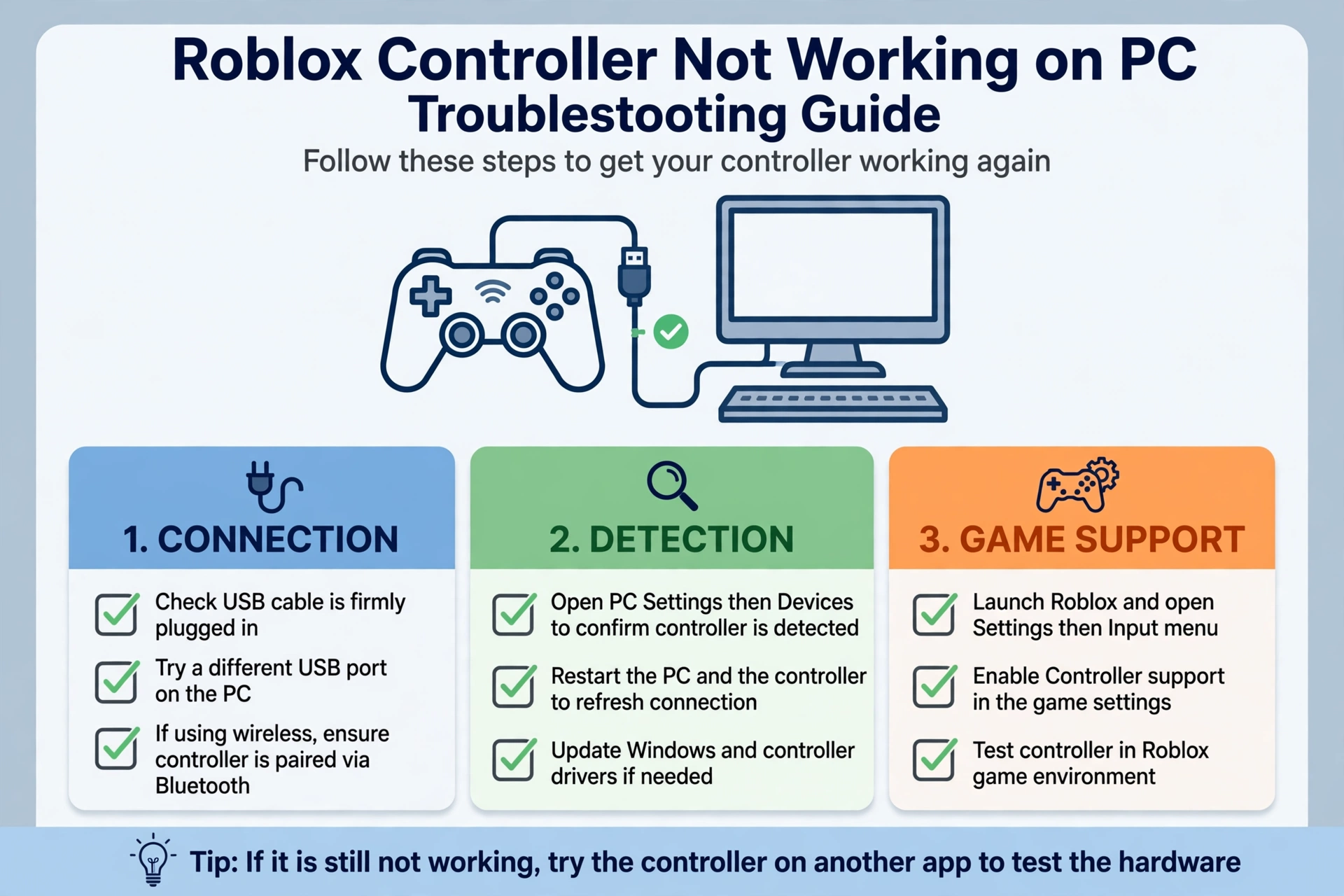
If your roblox controller not working pc problem started suddenly, the cause is usually one of three things: the controller is not detected by Windows, Roblox is not reading it, or the experience you joined does not support a gamepad. This guide walks through each case in order, so you can stop guessing.
No single fix works for every controller or every PC. The steps below narrow the problem down so you can find the one that applies to you.
Quick Answers
| Question | Short answer |
|---|---|
| Most common cause | The controller is not being detected by the PC, or the experience does not support controller input. |
| First thing to check | Test the controller in a gamepad tester and in another game or app. |
| Game setting or controller fault? | If the controller works in the tester and other games but not in one Roblox experience, suspect the game. If it fails everywhere, suspect the controller, cable, or PC. |
| Buttons work, sticks do not | Check deadzone and calibration, then compare with another game. |
First, find out where it breaks
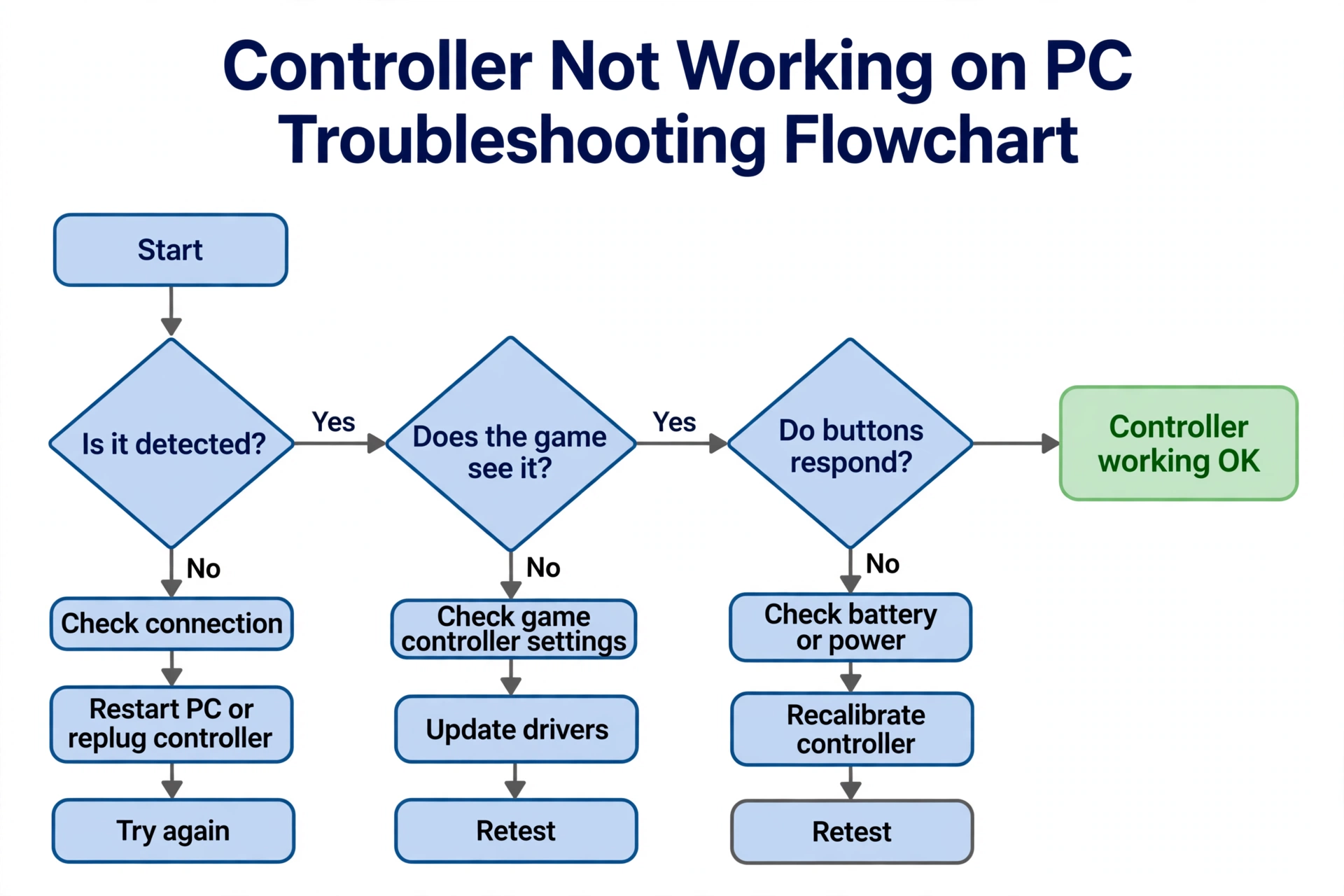
Before changing any settings, test the controller outside Roblox. This tells you whether Roblox, the controller, or the PC is at fault.
Open the gamepad tester and press every button, move both sticks, and squeeze both triggers. If every input registers, the controller and the PC are talking to each other.
Then try the controller in another game or app that supports gamepads. Use something you already own.
Read the results this way: • Fails in the tester and other games: the controller, cable, battery, or PC connection is the problem. • Works in the tester but not in Roblox: the problem is in Roblox or in the specific experience. • Works in one Roblox experience but not another: the experience is the likely cause.
This one test saves a lot of time. Do it first.
Roblox controller not working PC: controller not detected at all
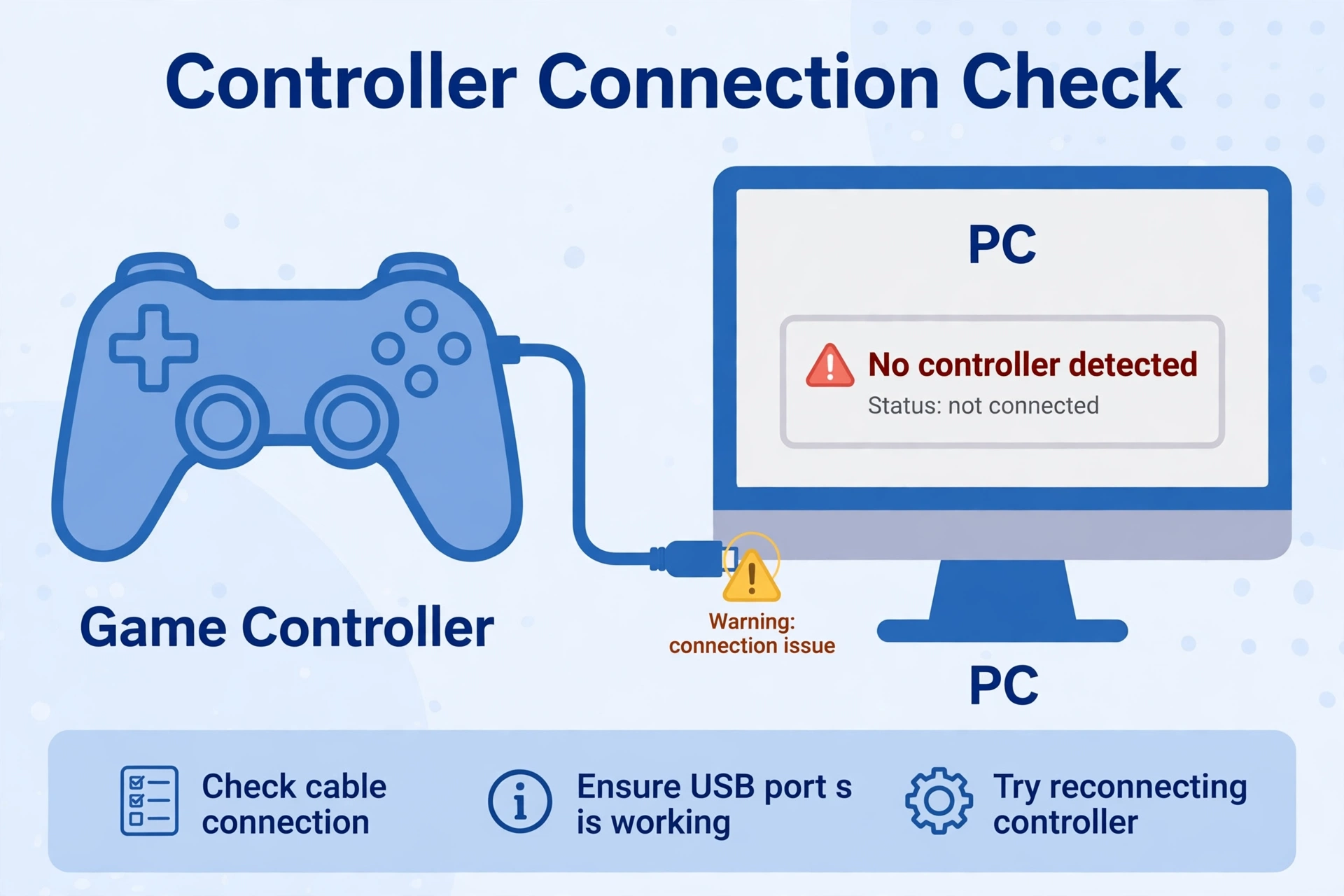
If the tester shows nothing, the PC does not see the controller. Start with the simplest causes.
Check the connection type. A wired controller needs a good cable. A wireless one needs a working Bluetooth or receiver connection.
Try another USB port. Some ports misbehave. Plug the controller directly into the PC rather than through a hub.
Try a different cable. Some cables only carry power, not data. If you have a spare, swap it in.
Charge it or fit fresh batteries. A weak battery can cause a controller to connect briefly, then drop out.
Restart the PC. It sounds basic, but it clears stuck input states more often than you would expect.
Check device settings. Open your system’s device or Bluetooth settings and see whether the controller is listed. If it appears there but not in the tester, remove it and pair or plug it in again.
If the controller never shows up in device settings, treat it as a connection or hardware issue before touching Roblox. This is the point where many people trying to fix roblox controller problems waste time in the wrong place.
Controller detected but Roblox ignores it
This is the case where the tester works but the roblox gamepad not working problem remains inside the game.
Restart Roblox. Close it fully, reconnect the controller, then launch Roblox again. Roblox generally reads connected controllers when it starts, so connecting first can help.
Check Roblox input settings. Look through the in-game menu and settings for anything related to controls, input, or camera and movement modes. Settings differ between experiences and can change over time, so look for options in general terms rather than expecting a specific layout.
Try a different experience. Join a different experience that is known to support gamepads. If the controller works there, your setup is fine.
Check whether the game mode supports a controller. Some experiences only respond to keyboard and mouse. If the developer did not build for gamepads, no setting on your side can change that.
Keep the controller connected and try again after each change. Make one change at a time so you know which one helped.
Buttons work but sticks or triggers do not
If the face buttons respond but movement or camera control feels wrong, the issue is usually calibration or deadzone, or a worn stick.
Test the sticks in the gamepad tester. Move each stick slowly through its full range and watch whether the reading is smooth and returns to center. A stick that reads movement while untouched, or never reaches full range, points to a hardware or calibration problem.
Check calibration. Your system may offer a controller calibration or properties screen. Use it to recalibrate if available.
Look for deadzone options. Some games and controller utilities let you adjust deadzone, which is the small area around center where input is ignored. Increasing it can help with mild drift in general terms, though it will not fix a damaged stick.
Compare with another game. If the same stick misbehaves elsewhere, the controller is at fault. If it only misbehaves in one Roblox experience, the experience is the cause.
Triggers can be analog or digital depending on the controller and the game. A trigger that works in the tester but not in Roblox may simply not be mapped in that experience.
PC-side fixes
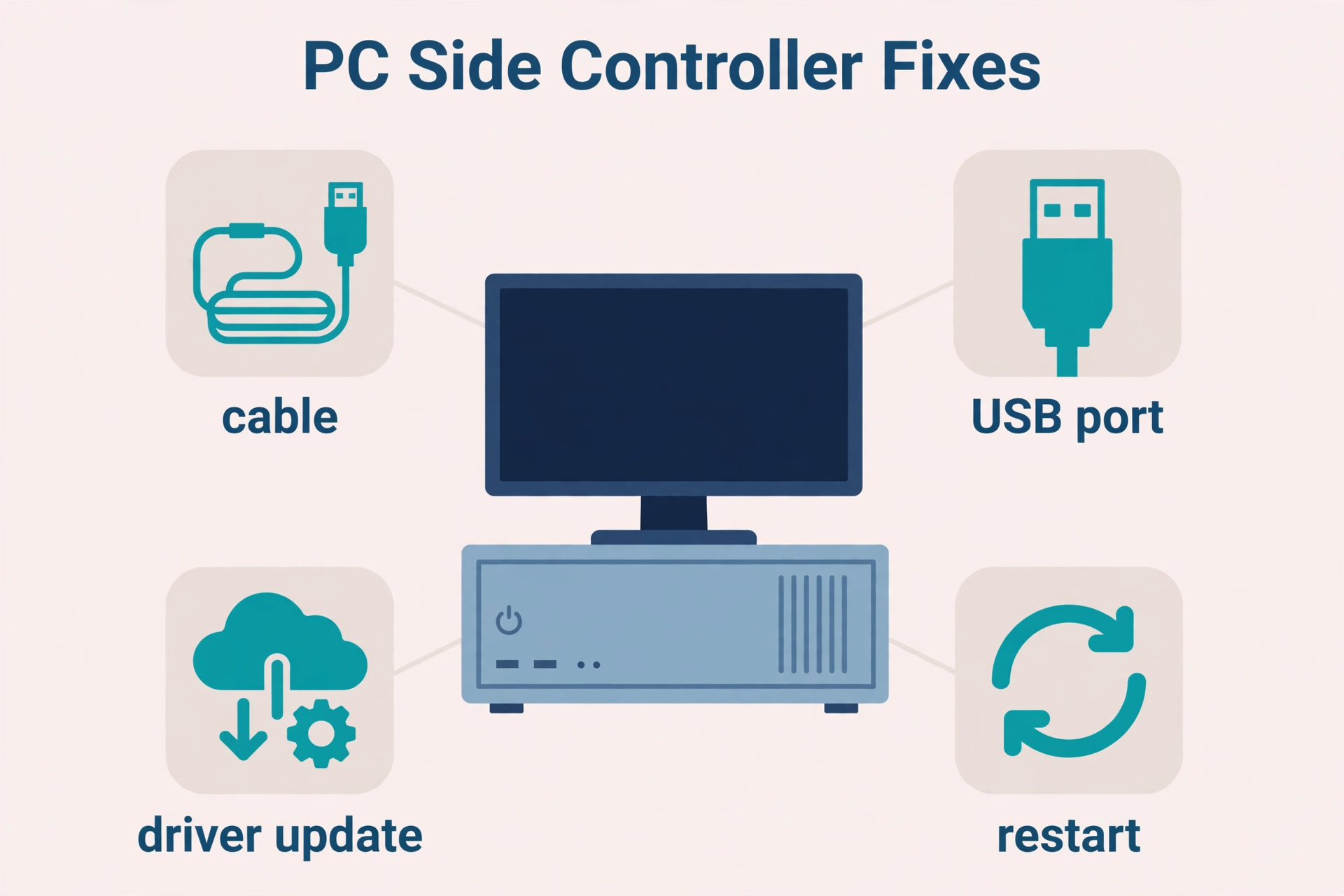
If the controller fails everywhere, work through these PC-side fixes. Try them in order from least to most effort.
| Fix | What it checks | When to try it |
|---|---|---|
| Restart the PC | Clears stuck input states and driver glitches | First, before anything else |
| Reconnect the controller | Forces the PC to detect it again | When the controller shows in settings but not in the tester |
| Update drivers through the maker’s official route | Rules out outdated or broken drivers | When the controller is not detected or behaves oddly across apps |
| Disable conflicting input software | Checks whether another tool is grabbing or remapping the controller | When the controller works in some apps but behaves strangely in others |
| Test on another PC | Separates a PC problem from a controller fault | When nothing else has helped |
For driver updates, use the controller maker’s official support pages or your system’s built-in update tools. Avoid unofficial driver download sites.
Input software such as remapping tools, overlays, and virtual controller drivers can interfere. Close them or disable them one at a time and test again.
Testing on another PC is the cleanest way to rule out hardware. If it works there, the problem is on your original machine.
When it is not your controller
Sometimes everything on your side is fine and the problem is the experience.
Some experiences are built for keyboard and mouse only. Developers decide which inputs to support. If there is no gamepad support, your controller will not work there.
Mobile-first experiences may behave differently on PC. An experience designed around touch controls may handle gamepads in unexpected ways.
Server or experience bugs are possible. A recent change by the developer could break controller input without affecting anything else.
Before blaming hardware, try another experience. If your controller works there, you have your answer.
If you are also checking whether a related tool is currently available, see the status page. Keep in mind that a controller problem and an executor problem are separate issues.
FAQ
Why does my controller work in other games but not Roblox?
Does Roblox support every controller?
Do I need extra software?
Why does my controller disconnect mid-game?
Can a Bluetooth controller work with Roblox on PC?
Should I reinstall Roblox?
Related Guides
Related guides
Gamepad tester hub: check buttons, sticks, and triggers in your browser
Delta Executor status page: see the current status information we have
Fixing stick drift on a controller: what causes it, how to confirm it, and what to try next
Related: if no controller is detected at all, see the Gamepad Not Detected Fix Guide.